> For the complete documentation index, see [llms.txt](https://help.ecombe.com/llms.txt). Markdown versions of documentation pages are available by appending `.md` to page URLs; this page is available as [Markdown](https://help.ecombe.com/editor-and-functions/editor-features/how-to-setup-pickup-in-store.md).
# How to setup Pickup In Store
This article introduces the **Pickup in store** feature in Ecombe Editor and explains how to set it up in your Shopify store.
## Overview
**Pickup in store in** (also known as **Pick up in store** or **Local pickup**) is a feature that allows customers to **place an order online and pick it up at a physical store**, instead of having it shipped to their address.
Pickup at store works based on **locations** and **product inventory**, does not require installing additional apps, and can be used alongside other delivery methods.
## Requirements to use Pickup at store
Before setting up Pickup at store, make sure that:
* Your store has **at least one Location**
* The location has **Fulfillment enabled (fulfills online orders)**
* The product has **inventory available at that location**
## How to set up Pickup at store
Follow the steps below to set up Pickup at store in your Shopify store.
{% stepper %}
{% step %}
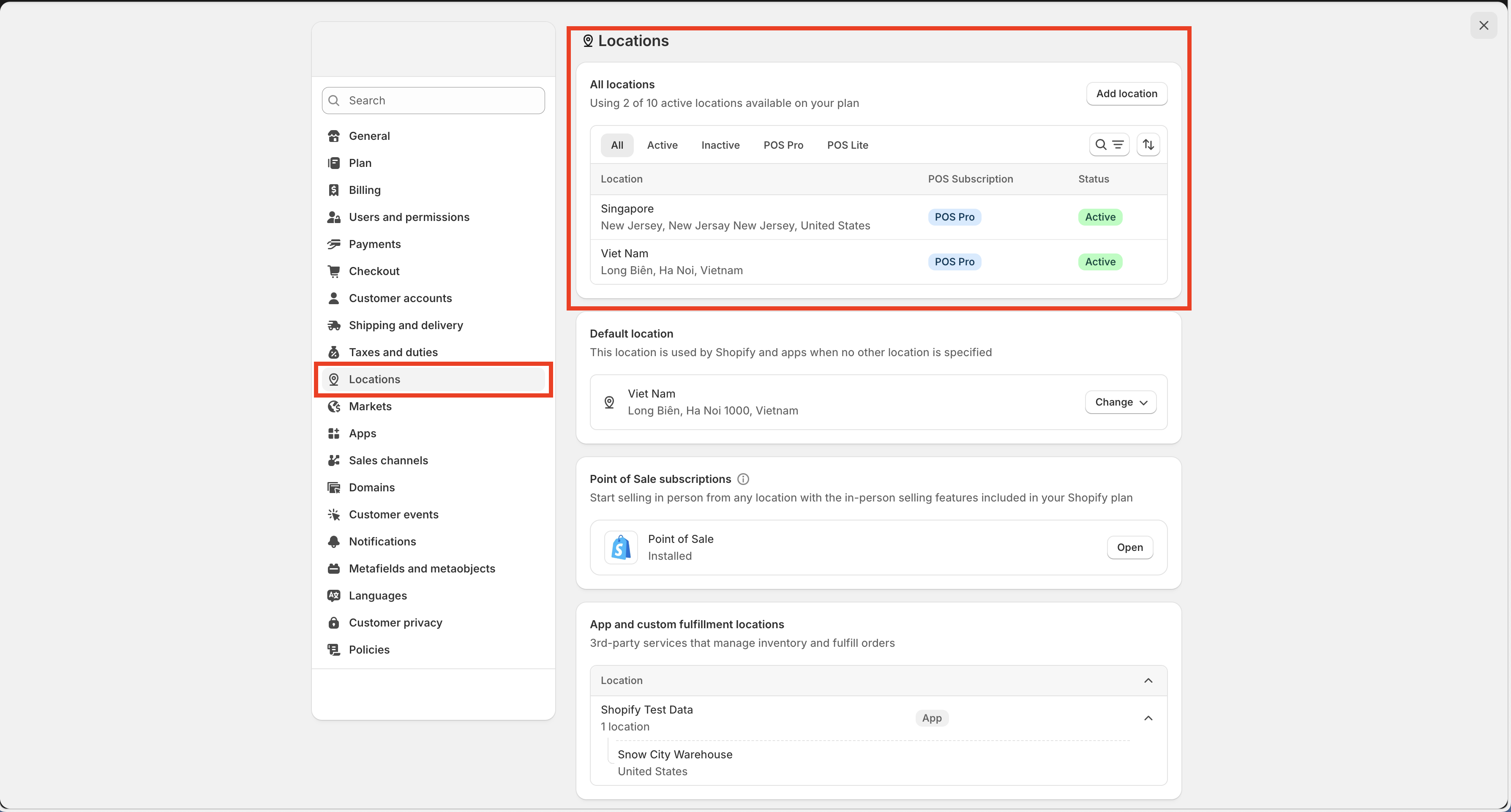
#### Check your Locations
Go to **Shopify Admin, n**avigate to **Settings → Locations**
By default, Shopify creates one location. If you want to create more locations:
1. Click **Add location**
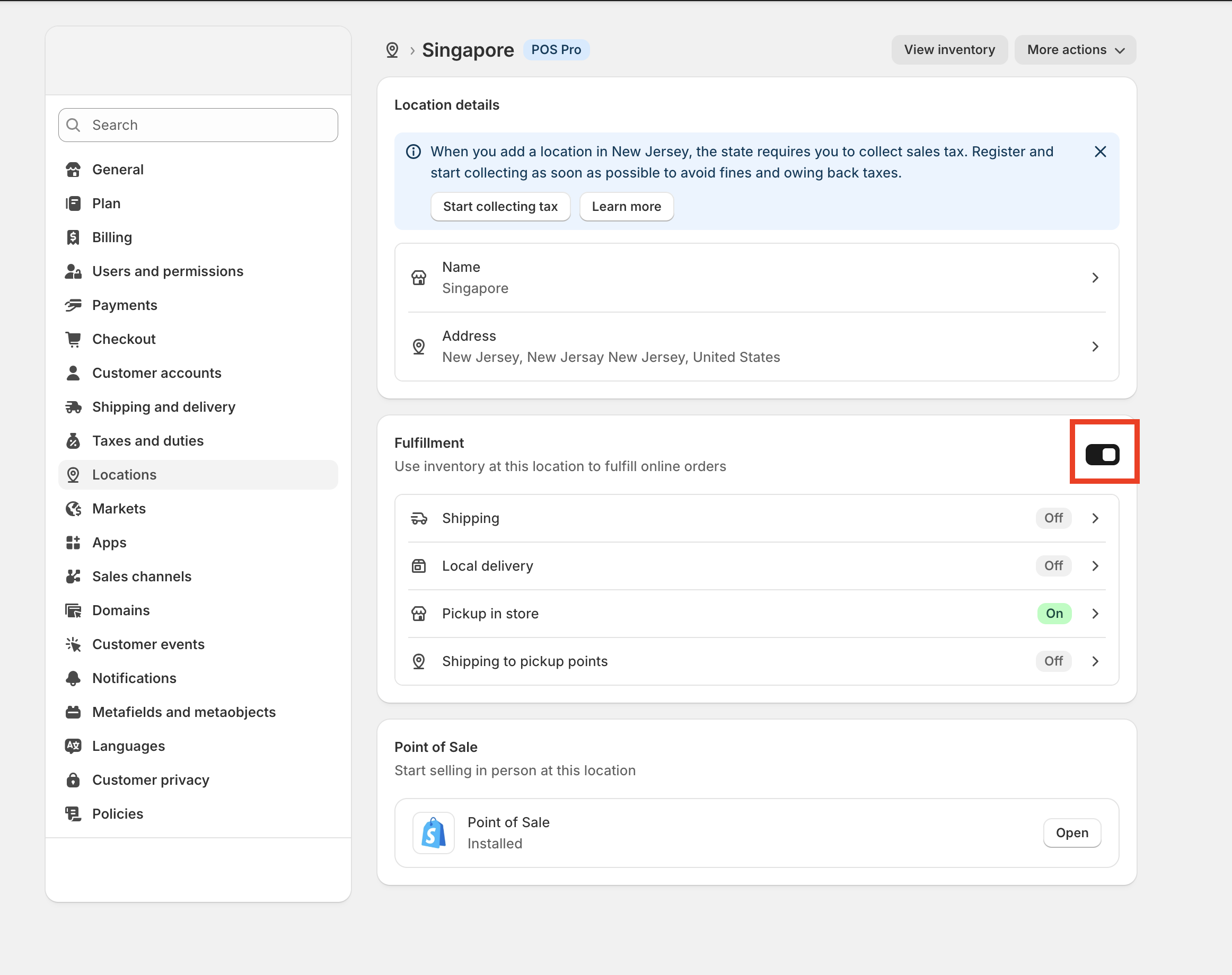
2. Enter the **Location details** (Name, Address)
Make sure: **Fulfillment** is enabled
This location will be where customers pick up their orders.
{% endstep %}
{% step %}
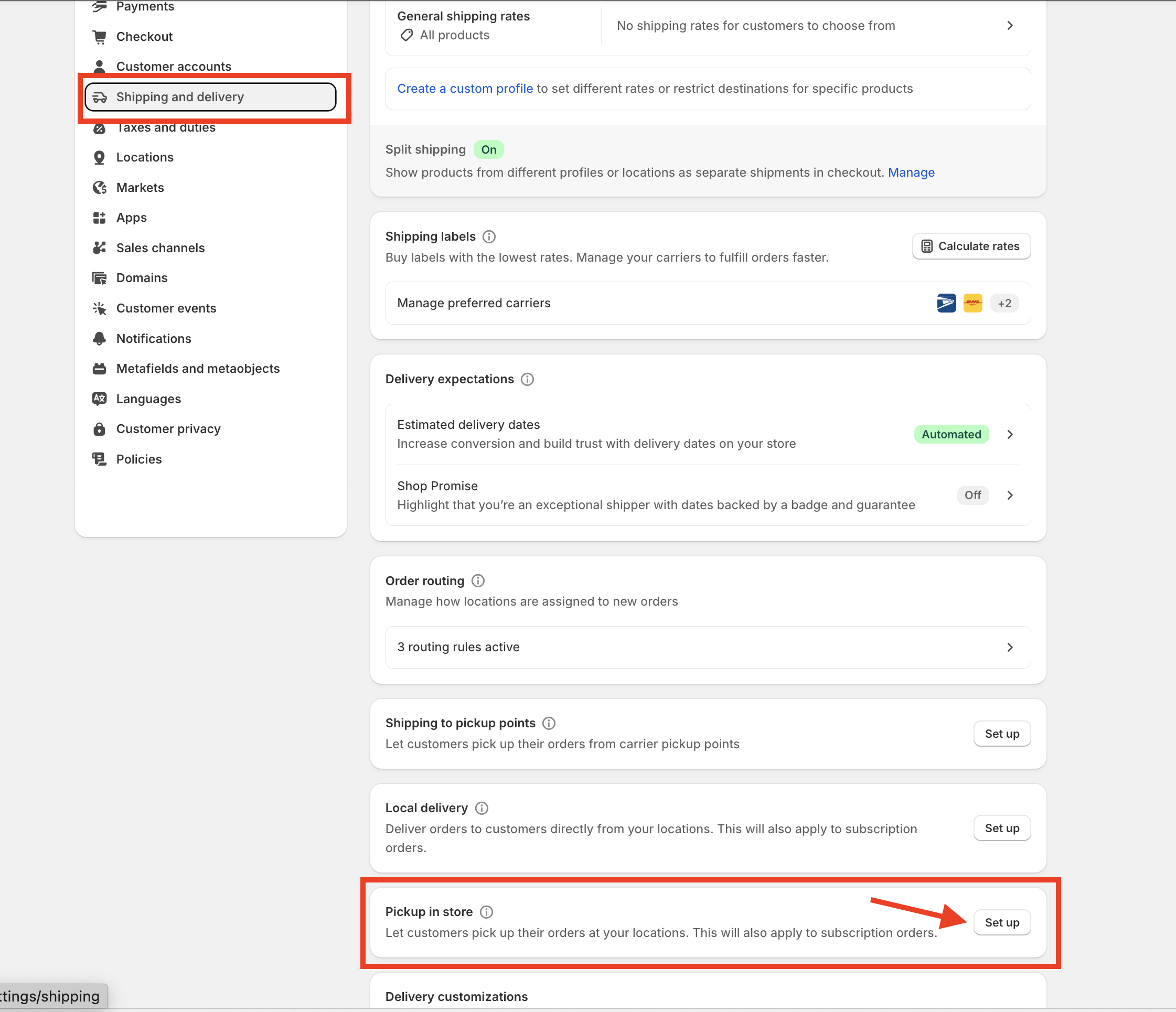
#### Enable Pickup in store for a Location
Go to **Settings → Shipping and delivery->**Scroll down to the **Pickup in store** section then Click **Set up.**
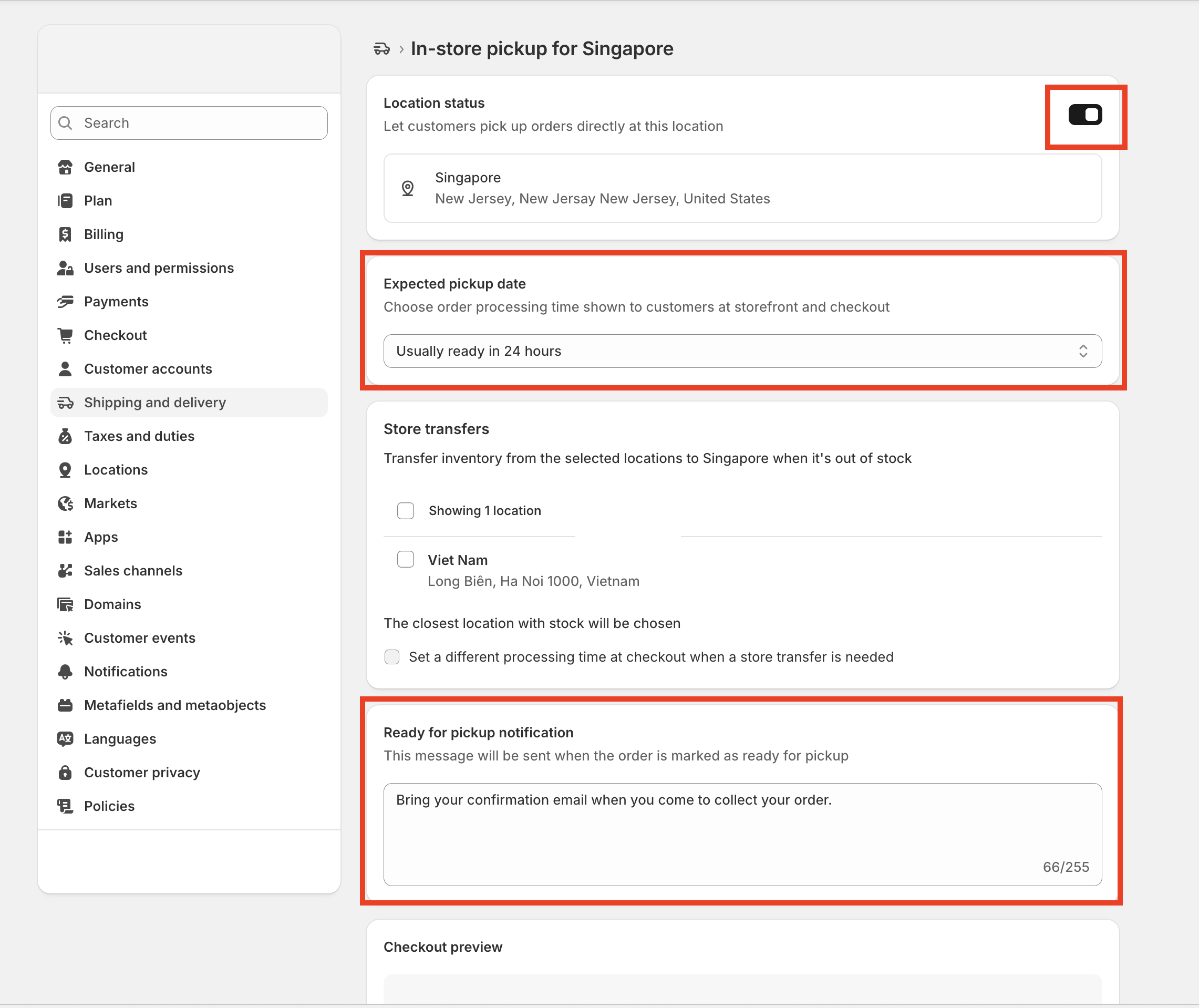
Select the location you want to allow pickup from. Enable **Let customers pick up orders directly at this location**
Configure:
* **Ready for pickup notification**
* Example: *“Please bring your order confirmation email when picking up.”*
* **Expected pickup date**
* Example: *“Ready within 2 hours”* or *“Same day”*
This information will be displayed to customers during checkout.
{% endstep %}
{% step %}
#### Assign product inventory to the Location
Pickup at store **only works if the product has inventory at the pickup location**.
1. Go to **Products → select a product**
2. Scroll down to the **Inventory** section
3. Under **Locations**, make sure:
* The location is **enabled**
* Inventory quantity is **greater than 0**
4. If not:
* Click **Edit locations**
* Enable the location
* Enter the inventory quantity
If the product has multiple variants, make sure to check the inventory for each variant.
{% endstep %}
{% step %}
#### Check display on the Ecombe Product Template
After setup is complete:
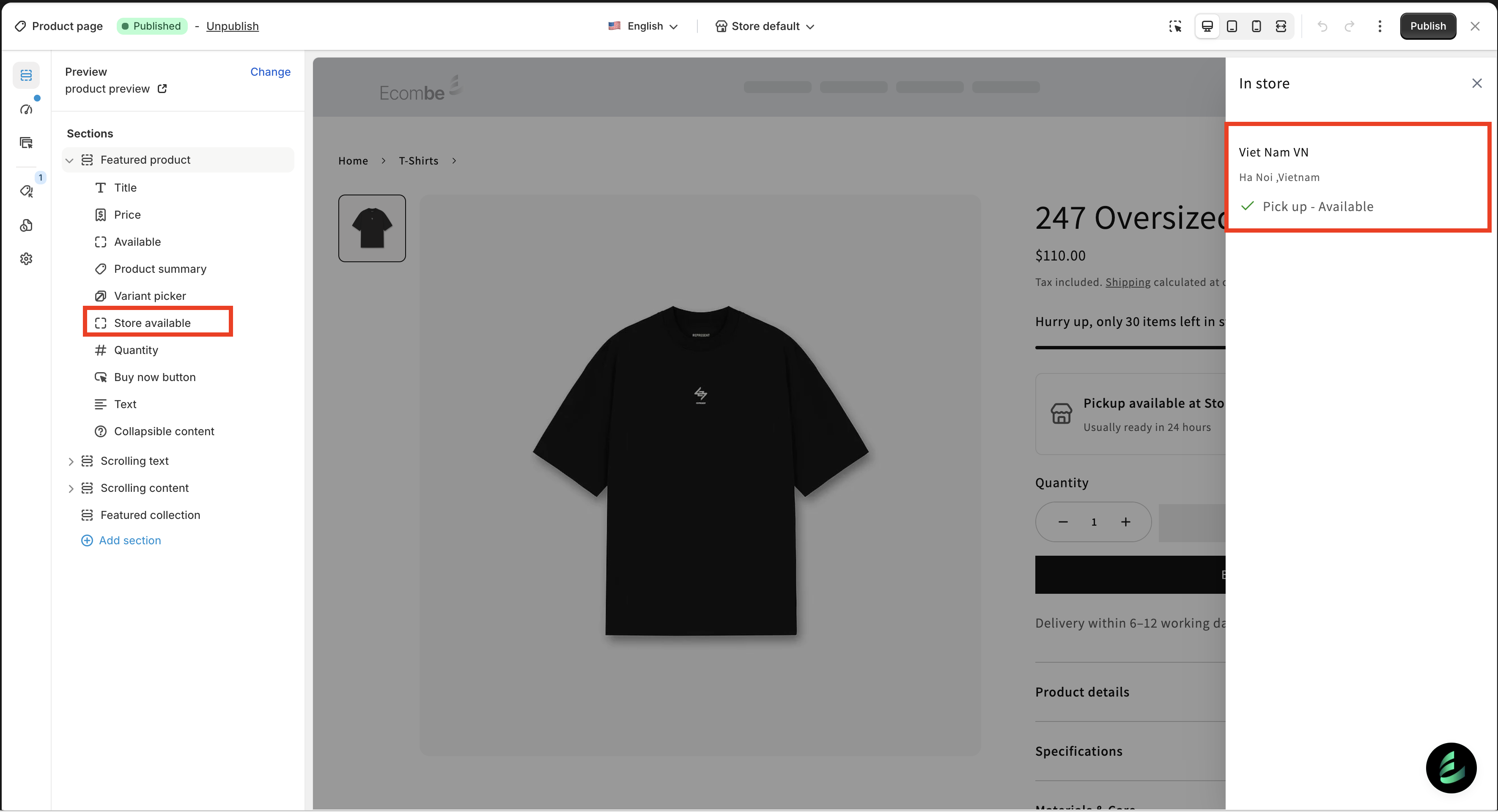
* On the **Ecombe Product Template**, when clicking the **Store available** block, it will display:
* Store name
* A status label such as **Pick up – Available**
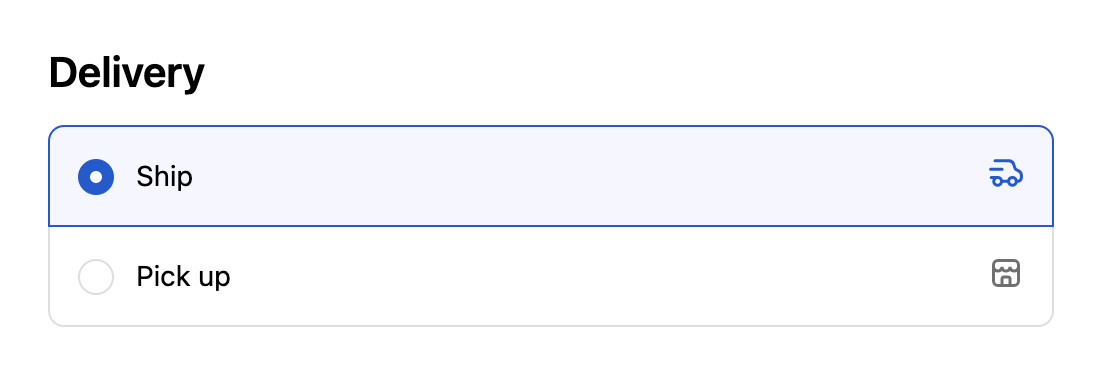
* During **Checkout**, customers will see the options:
* **Ship**
* **Pick up**
**Note:** Pickup at store will **not be displayed** if:
* The product is out of stock at the location
* Local pickup is not enabled for the location
{% endstep %}
{% endstepper %}
## Frequently Asked Questions (FAQ)
#### Does Pickup at store apply to individual products?
→ **No.** Pickup at store is not enabled per product. Instead, it is:
* Enabled per **Location**
* Applied to **all products with inventory at that location**
#### Can I hide pickup for a specific product?
→ Yes. You can do this by:
* Not assigning that product’s inventory to the pickup location, or
* Setting the inventory quantity to **0** at that location
{% hint style="info" %}
Have a question?
Contact us via **in-app live chat**. We'll reply in few minutes.
{% endhint %}