> For the complete documentation index, see [llms.txt](https://help.ecombe.com/llms.txt). Markdown versions of documentation pages are available by appending `.md` to page URLs; this page is available as [Markdown](https://help.ecombe.com/editor-and-functions/store-optimization/analytics.md).
# How to set up and use Analytics to tracking Ecombe page
## Overview
This documentation is designed to help you understand how to use **Ecombe Analytics** to tracking your page. It explains the purpose of Analytics, how to enable it, how to set it up, and how to interpret each insight.
By following this guide, you will learn how to read the key metrics, understand visitor behavior, and use data to make more informed decisions when optimizing your layouts and improving the shopping experience on your Shopify store.
## Ecombe Analytics, what’s that?
Ecombe Analytics lets you view your page's performance and how Ecombe pages can help you grow your business and increase sales. By visualizing metrics, you can get an overview of your page's performance and see how it changes over time. This information can help you make better business decisions.
## What can Ecombe Analytics do?
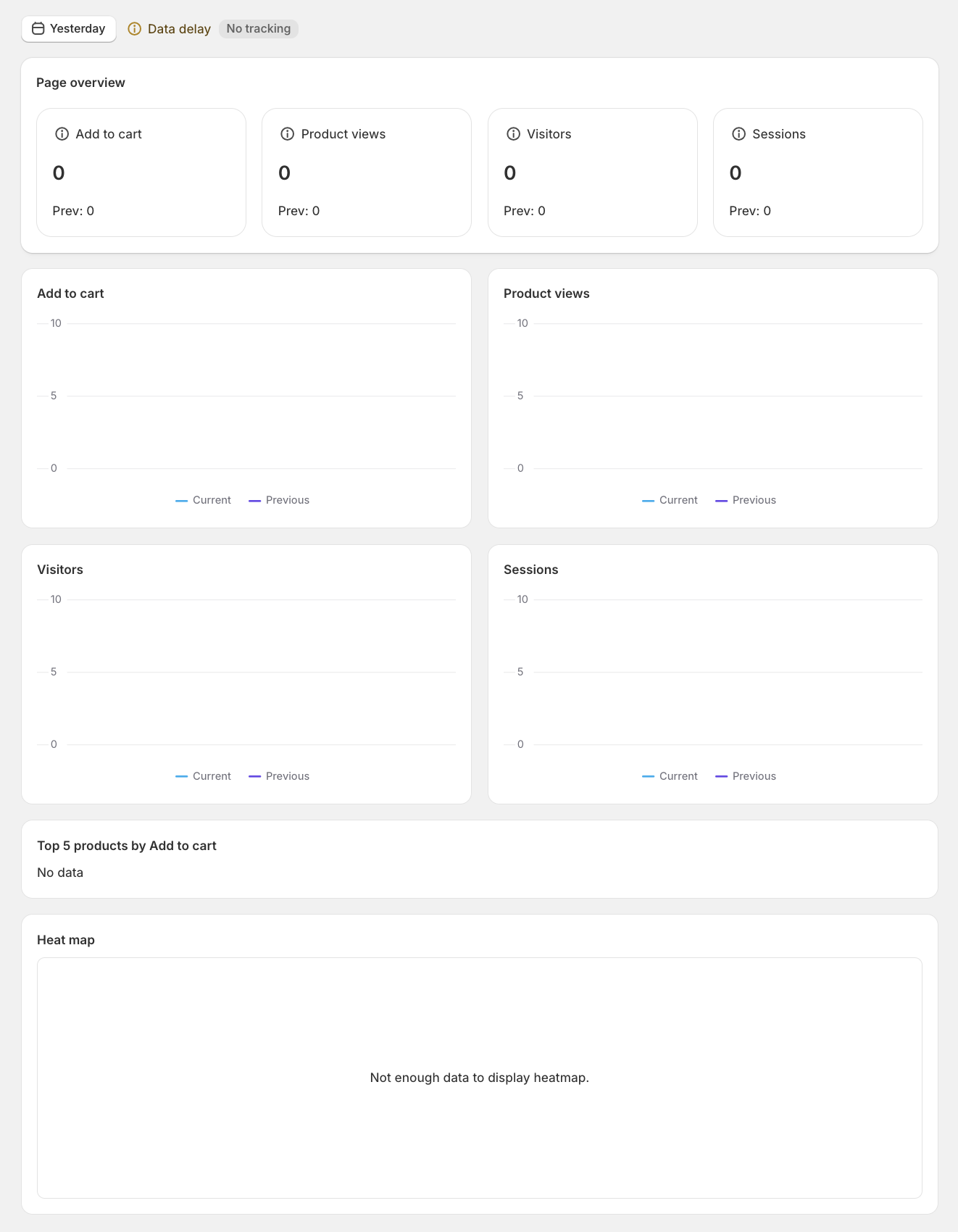
Ecombe Analytics helps you track the performance of each page by providing real user-behavior data. Based on metrics such as Add to Cart, Product Views, Visitors, Sessions, Top Products, and Heat Map, Page Analytics allows you to:
* **Understand how visitors interact with your page**
Easily see what users are viewing, where they interact, and which products they find interesting.
* **Evaluate your page’s conversion performance**
Track Add to Cart behavior to see whether your page effectively drives users closer to purchase.
* **Analyze traffic and user return frequency**
Visitors and Sessions help you understand traffic quality and how often users come back.
* **Identify your most attractive products**
Top 5 Products by Add to Cart reveals standout products so you can optimize presentation or focus marketing efforts.
* **Improve your page layout based on real behavior**
The Heat Map shows which areas get the most attention, helping you optimize CTA positions or important information.
With this, you can optimize pages more effectively, increase engagement, and improve conversions based on clear data instead of assumptions.
## **Why Analytics is important for Shopify merchants**
Analytics helps Shopify merchants make accurate decisions based on data instead of intuition. By understanding the real performance of each page, merchants can prioritize the right content, reduce risks when optimizing layouts, and use their marketing budget more efficiently. This not only improves the customer shopping experience but also increases conversion rates and supports sustainable business growth.
## Enable Ecombe Analytics to tracking page performance
Ecombe Analytics uses data from Google Analytics (GA4) to calculate and analyze metrics. You need to enable Ecombe Analytics in order to set up and tracking page performance. If you have already enabled Ecombe Analytics, you can skip this step. If not, please refer to [this guide](/editor-and-functions/store-optimization/enable-ecombe-analytics.md) and then continue setting up Analytics.
## How to Set Up Analytics and View Insights
In this section, you will learn how to create a complete Page Analytics Campaign and view its metrics.
### Set Up Analytics
After your page is **published**, Ecombe Analytics will automatically track and analyze performance based on Google Analytics data.
### View Analytics Insights
After you create a Page Analytics Campaign, the data will take approximately **24 to 48 hours** for Google to collect.
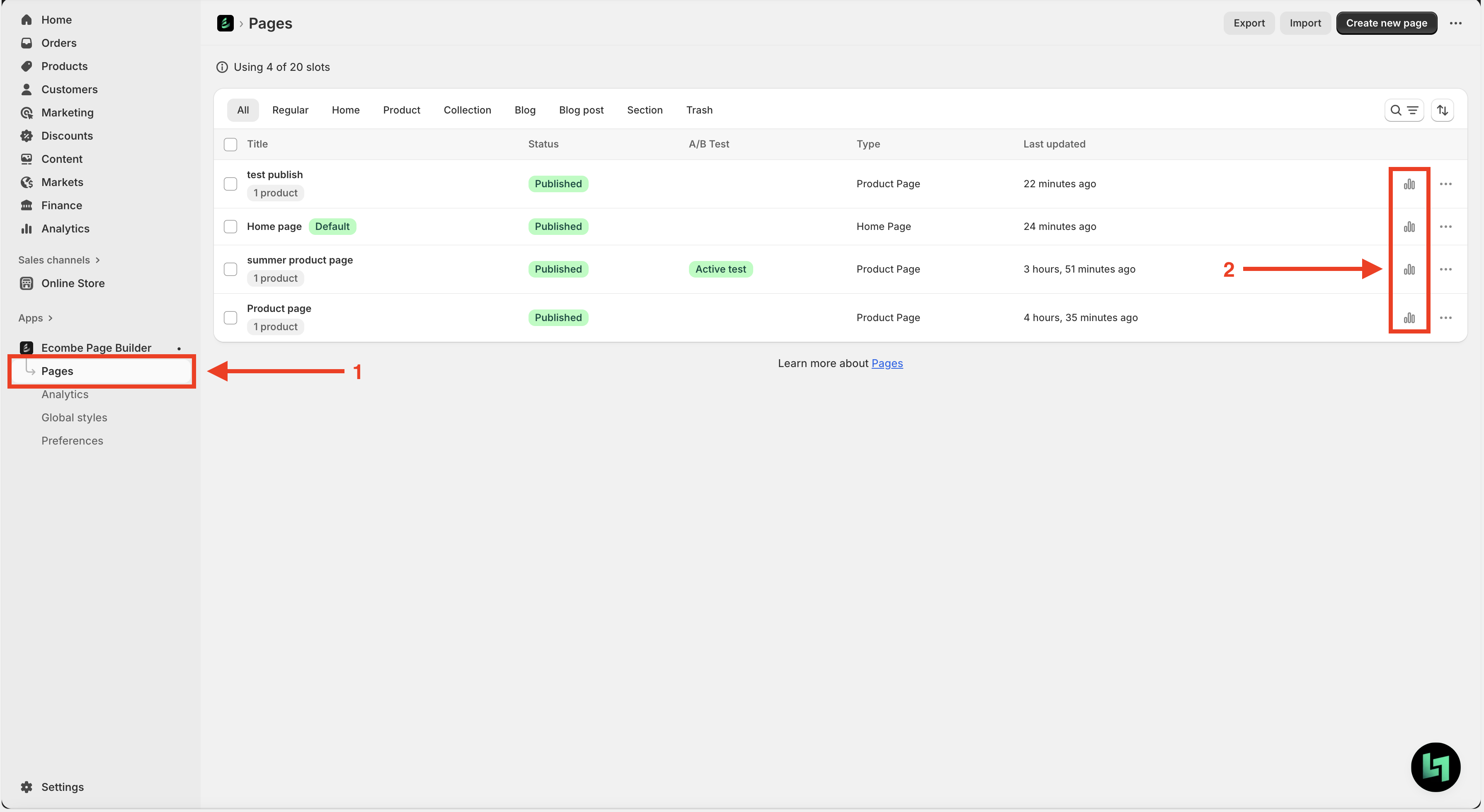
To view the analytics results, go to **Pages** and click the **Analytics** icon for the corresponding page.
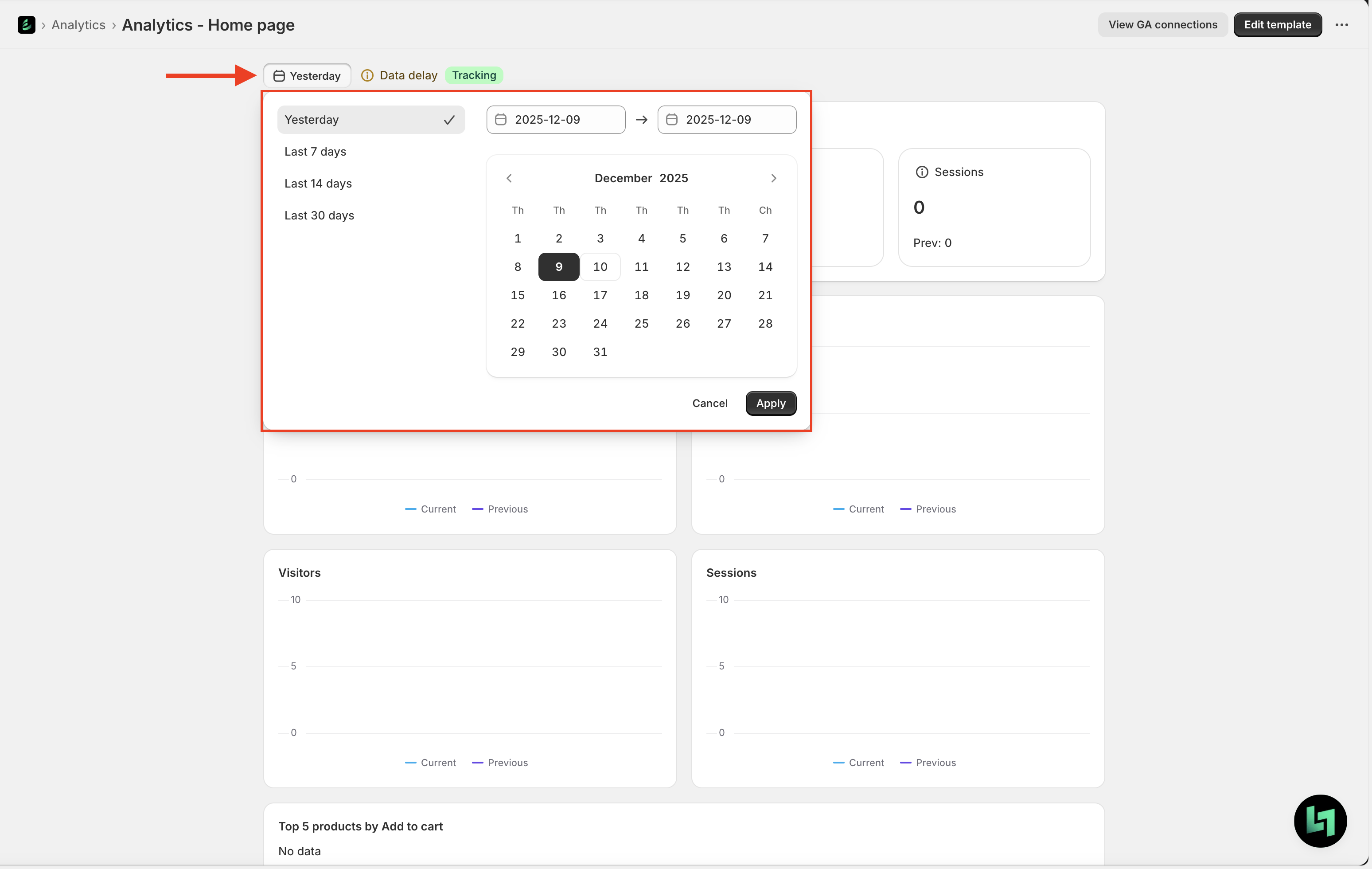
You can observe insights over a specific period using the date filtering feature.
## **Page Analytics Insights Explained**
This section helps you understand the meaning of each metric provided in Ecombe Page Analytics. By understanding metrics such as Add to Cart, Product Views, Visitors, Sessions, Top Products, and Heat Map, you can interpret your data accurately and make better optimization decisions based on actual visitor behavior.
**Add to Cart:** the number of products added to cart from the page. This metric reflects conversion performance and shows how effective the page layout, CTA, and content are.
**Product Views:** total number of product views. Helps assess how interested visitors are in the products displayed on the page.
**Visitors:** number of unique visitors. Indicates how many real users visit the page within a given time period.
**Sessions:** total number of sessions. A single user can generate multiple sessions. Used to monitor activity levels and user return frequency.
**Top 5 Products by Add to Cart:** the five products added to cart the most. Helps identify highly attractive products and supports decisions about display optimization or marketing strategy.
**Heat Map:** a map showing where users interact most on the page. Helps you see which areas attract attention and which are ignored, supporting UX layout optimization.
## How to Manage All Analytics Campaigns
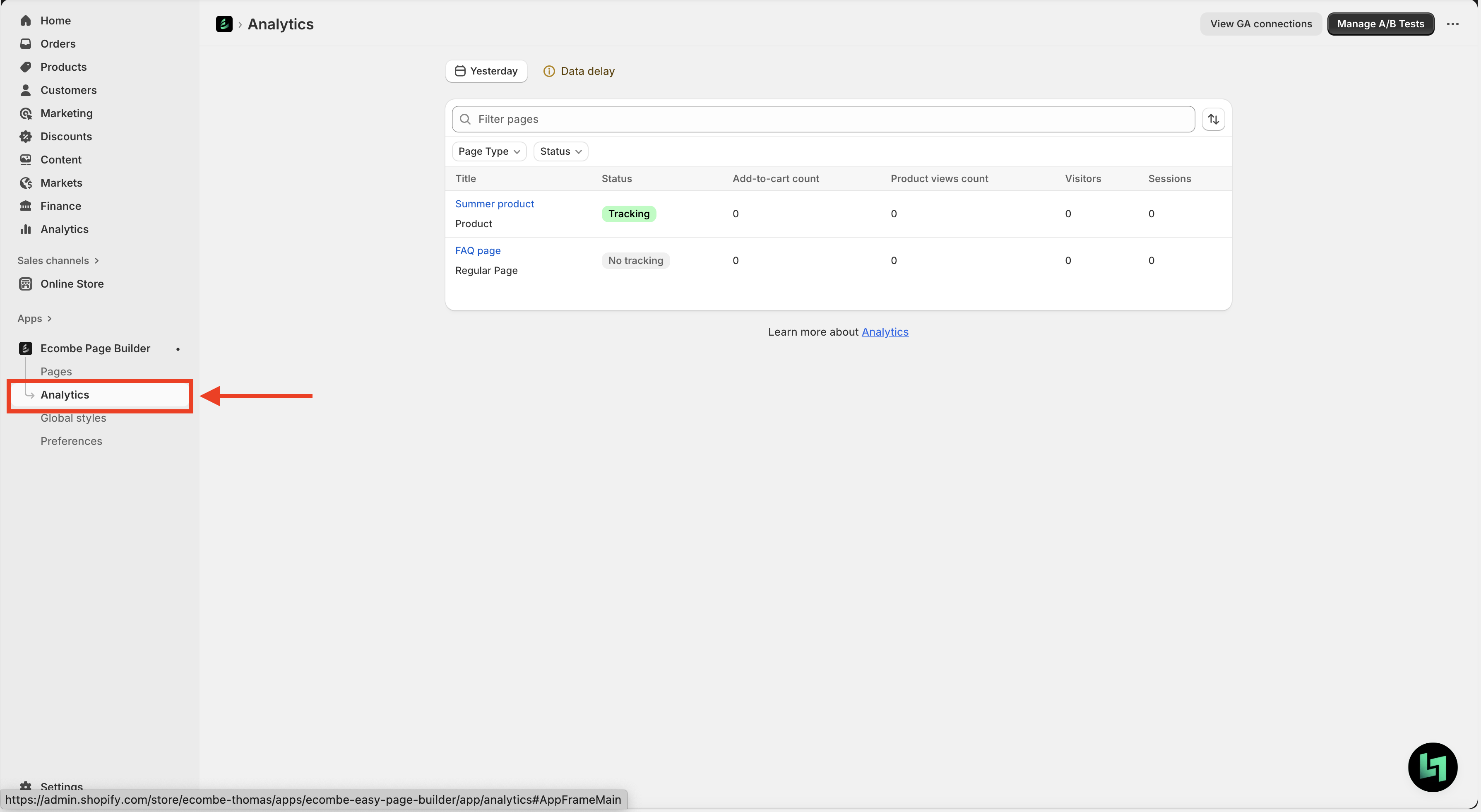
To manage all Analytics Campaigns, go to **Analytics** in the Shopify sidebar.
**Tracking Status and what they mean:**
* **Tracking:** The page is currently being analyzed.
* **Not tracking:** The page is not being analyzed. Please check whether the page has been published. Ecombe Analytics can only track pages that are already published.
## Best Practices for Page Analytics
Some tips from our experts to help you use Analytics more effectively
#### **1. Use Heat Map data to optimize layout placement**
Use Heat Map insights to identify which areas of the page receive the most attention. Place important elements, such as CTAs, key product information, or promotional banners in high-interaction zones to improve engagement and conversions.
#### **2. Focus on top-performing products identified by Add to Cart**
The “Top 5 Products by Add to Cart” metric helps you quickly identify which products attract the most interest. Prioritize these items in your layout, highlight them in promotions, or feature them more prominently to maximize impact.
#### **3. Monitor Add to Cart and Product Views to understand user behavior**
Track how often users view products and add them to cart to evaluate how effectively your page influences purchase intent. Patterns in these metrics can guide decisions on layout adjustments, content improvements, or product positioning.
#### **4. Avoid making decisions based on small data samples**
Metrics such as Add to Cart, Product Views, Visitors, and Sessions require sufficient data to reflect real user behavior. Avoid drawing conclusions when the dataset is too small, as it may produce misleading insights.
Aim to collect **at least 500 Sessions** to ensure your analysis is objective and statistically meaningful.
## FAQ
**1. Why can’t I see my page being tracked?**
Ecombe can only track pages that are published. Please make sure the page has been published.
**2. Why can’t I see any metrics?**
Data delay, some data may not appear within the selected time range because Google Analytics 4 can take **24 to 48 hours** to process new data.
Please check again after this time window. If you still don’t see any data, feel free to [contact our support](/getting-started/setup-and-quick-start/contact-support.md) team.