> For the complete documentation index, see [llms.txt](https://help.ecombe.com/llms.txt). Markdown versions of documentation pages are available by appending `.md` to page URLs; this page is available as [Markdown](https://help.ecombe.com/pages-and-section-creations/general/global-theme-styles/how-to-use-buttons-in-global-styles.md).

# How to use Buttons in Global styles

In this article we will guide you how to setup buttons style preset so that they can be reused and consistency across pages.

## What is Buttons

Buttons are a set of reusable button presets included in Global styles. They allow you to apply consistent button designs across all pages.\
There are three preset types available: **Primary**, **Secondary**, and **Tertiary** **buttons**.

<figure><img src="/files/OHjMNqrDcP8ttlKLCXFS" alt=""><figcaption></figcaption></figure>

## How to customize button style

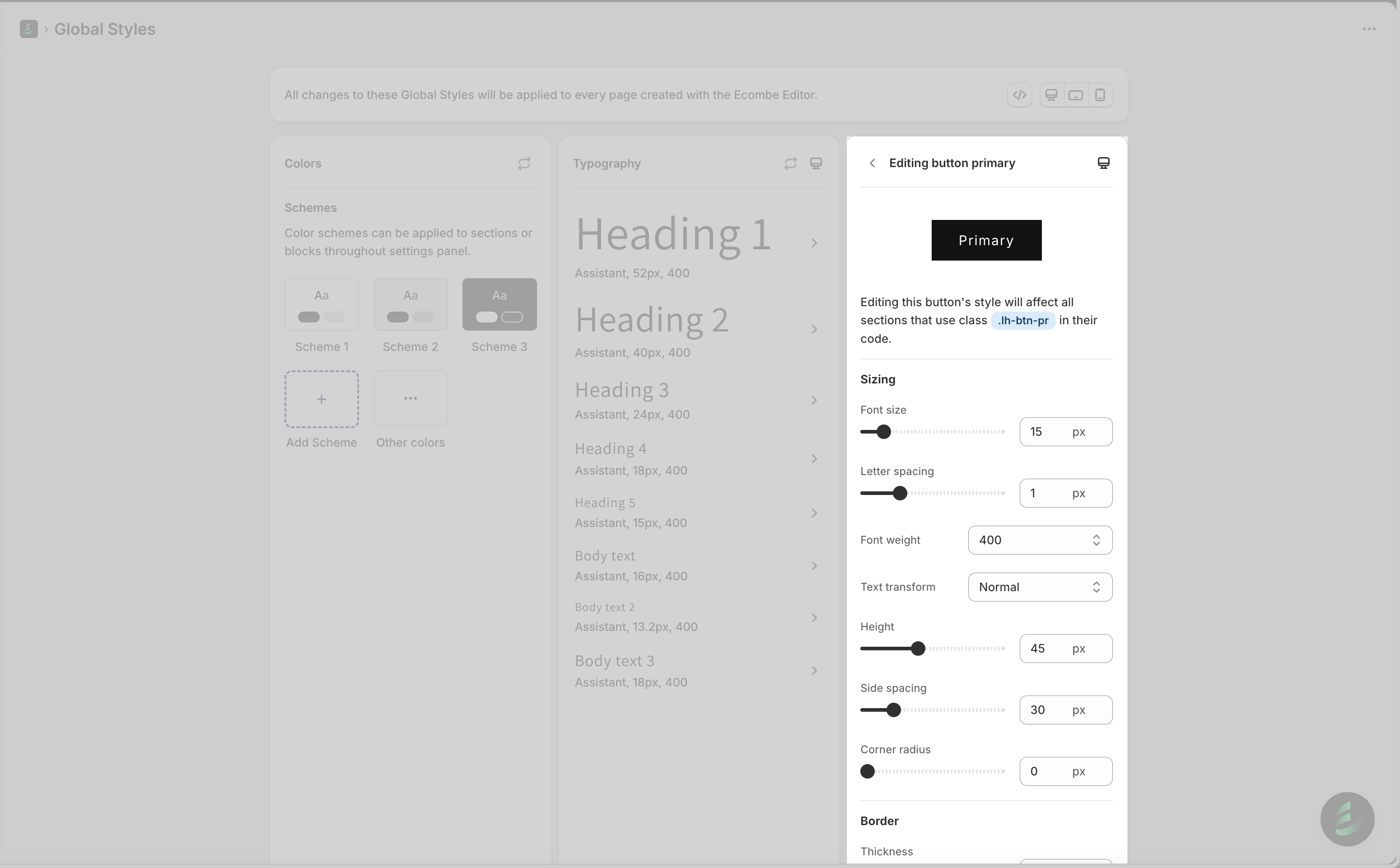
Click any button to open its editing panel and change the style settings.&#x20;

Button style is divided into there types of settings: **Sizing**, **Border**, **Shadow** and **Hover.** The button updates in real time as you adjust the settings. You can hover over it to preview the hover effect directly inside Global styles.

<figure><img src="/files/6qYh7X0Ei3ZMi0HDmAl3" alt=""><figcaption></figcaption></figure>

#### Sizing

<table data-header-hidden><thead><tr><th width="144.49810791015625"></th><th></th></tr></thead><tbody><tr><td><strong>Font-size</strong></td><td>Determines how large or small the text appears inside the button.</td></tr><tr><td><strong>Letter spacing</strong> </td><td>Adjusts the distance between individual characters, making your text feel tighter or more open.</td></tr><tr><td><strong>Font-weight</strong></td><td>Controls how thick or thin the text appears, ranging from light to bold. It helps emphasize important content.</td></tr><tr><td><strong>Text transform</strong></td><td>Changes the letter casing of the text inside the button. You can convert all letters to <strong>uppercase</strong>, <strong>lowercase</strong>, or <strong>capitalize</strong> the first letter of each word.</td></tr><tr><td><strong>Height</strong></td><td>Adjust the height of the button.</td></tr><tr><td><strong>Side spacing</strong></td><td>Controls the horizontal space on the left and right sides of the button, helping you adjust how wide the button appears</td></tr><tr><td><strong>Corner radius</strong></td><td>Controls the roundness of the button’s corners, letting you choose between sharp edges and a softer, rounded look.</td></tr></tbody></table>

***

#### **Border**

**Thickness**: controls how thick or bold the border appears around the button.

***

#### Shadow

This part you adjust all shadow settings for the button.

<table data-header-hidden><thead><tr><th width="140.52532958984375"></th><th></th></tr></thead><tbody><tr><td><strong>Horizontal</strong></td><td>Adjusts the shadow’s left–right position.</td></tr><tr><td><strong>Vertical</strong></td><td>Adjusts the shadow’s top–bottom position.</td></tr><tr><td><strong>Blur</strong></td><td>Controls how soft or sharp the shadow appears.</td></tr><tr><td><strong>Transparent</strong></td><td>Controls how visible or faded the shadow looks.</td></tr></tbody></table>

***

#### Hover

**Transition:** controls how smoothly the button changes style when hover in it.

## **FAQ**

#### How do I change the font family of a button

The button's font family will be applied according to the Body Text's typography. To learn more about typography and how to change it, please refer to this [article](/pages-and-section-creations/general/global-theme-styles/how-to-use-typography-in-global-theme-style.md#how-to-customize-typography).

#### How can I change button style when I edit my page

You can click in to each button to open it editing panel to change styles.

<figure><img src="/files/5R2CEBLXMaQPphtaA2jI" alt=""><figcaption></figcaption></figure>

We hope this article helps you understand how to use Buttons feature in Global styles to customize button style presets and set consistent button style for your theme.

{% hint style="info" %}
Have a question?

Contact us via **in-app live chat**. We'll reply in few minutes.
{% endhint %}