> For the complete documentation index, see [llms.txt](https://help.ecombe.com/llms.txt). Markdown versions of documentation pages are available by appending `.md` to page URLs; this page is available as [Markdown](https://help.ecombe.com/pages-and-section-creations/general/global-theme-styles/how-to-use-typography-in-global-theme-style.md).

# How to use Typography in Global theme style

In this article we will introduce the Typography feature in Global styles and how to use it to set up consistent text styling in the theme.

## What is typography

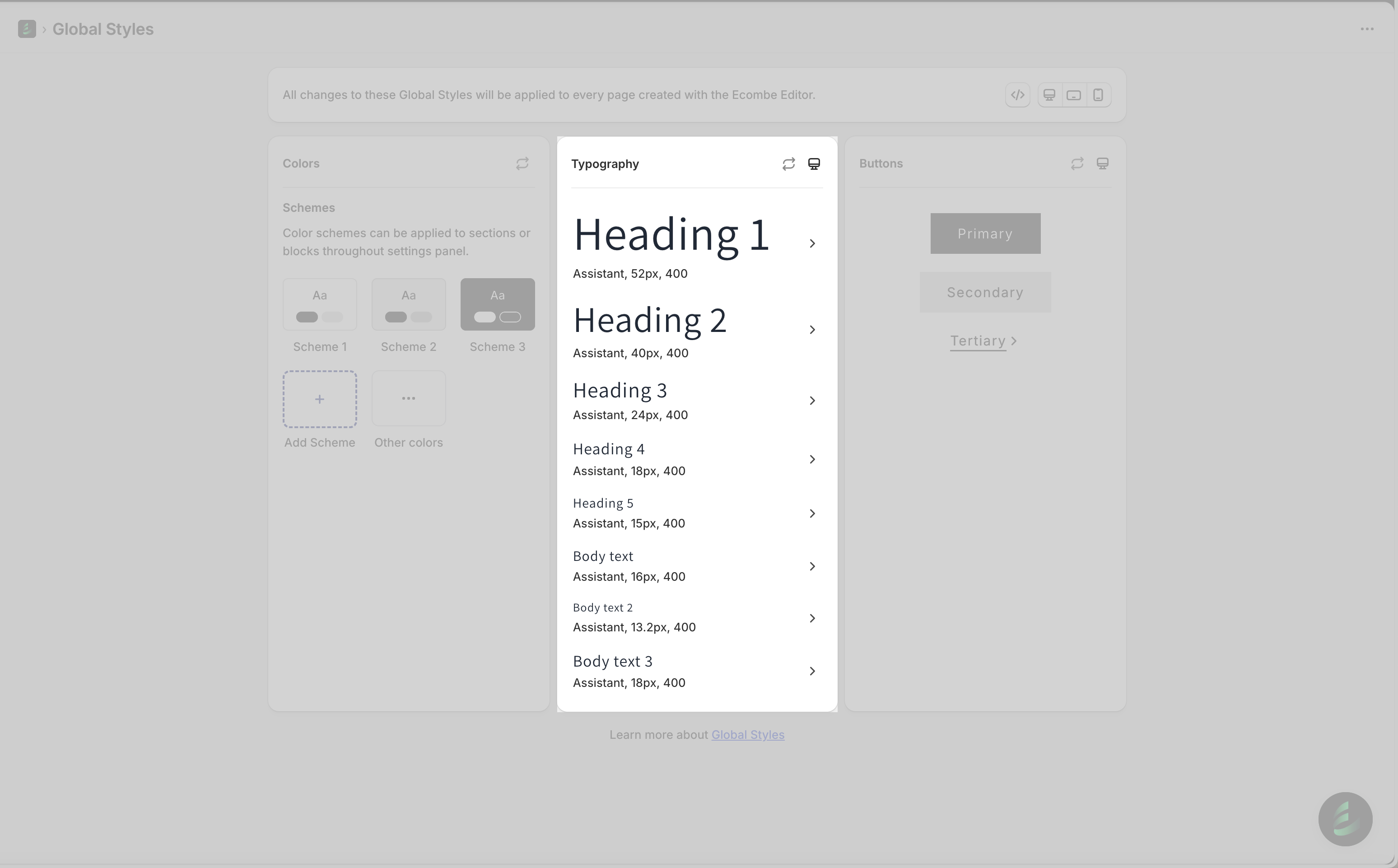
Typography brings together presets of typography types

These presets will help you reuse typography without having to set it up from scratch.

<figure><img src="/files/Hpt9HjSmkVZkBieUZTUI" alt=""><figcaption></figcaption></figure>

## How to customize typography

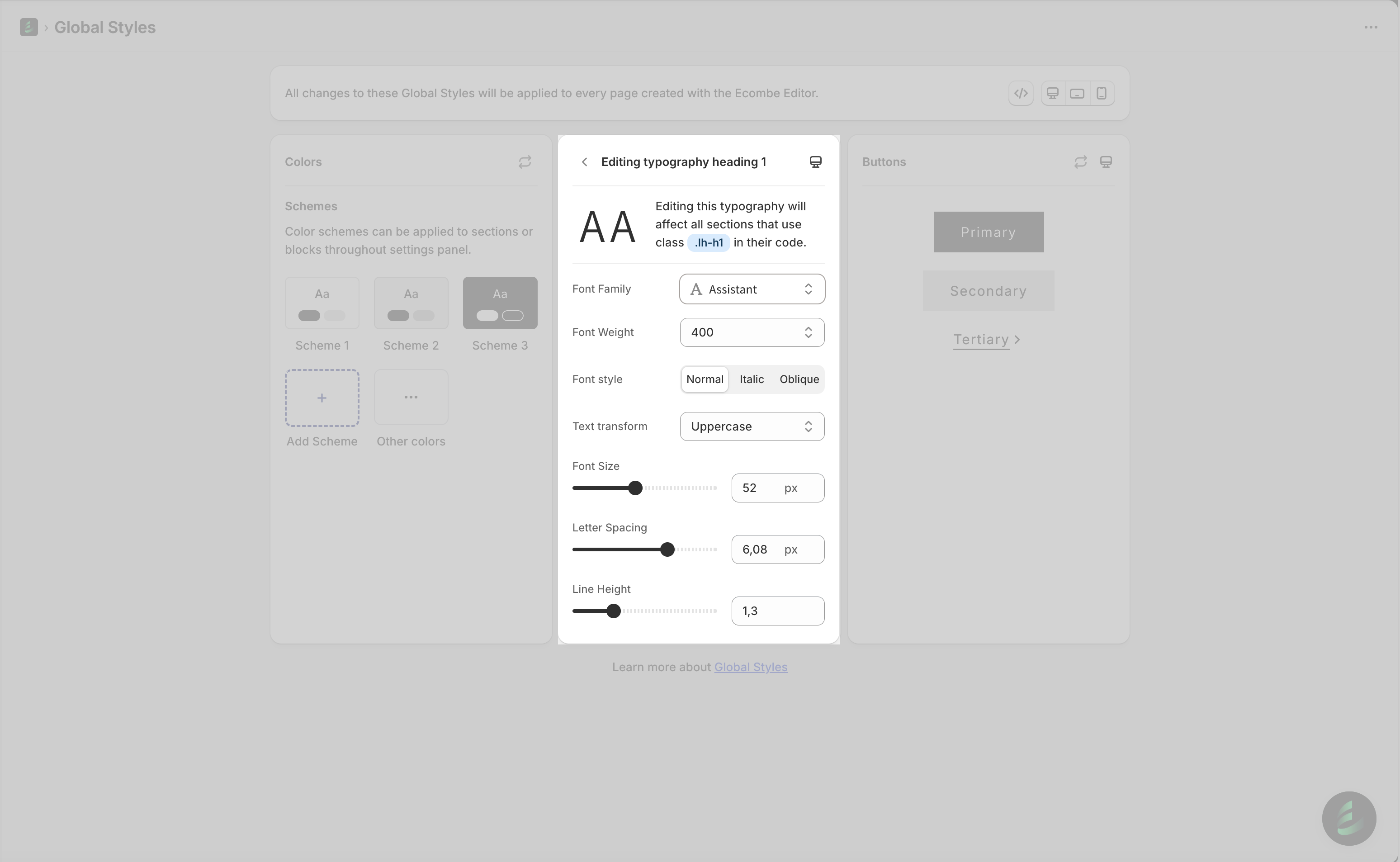
Click any typography item to open its editing panel, then adjust its text styling options:

<table data-header-hidden><thead><tr><th width="144.1533203125"></th><th></th></tr></thead><tbody><tr><td><strong>Font Family</strong></td><td>Font Family is the typeface used to display your text. Different fonts create different moods and visual styles for your store.</td></tr><tr><td><strong>Font Weight</strong></td><td>Font Weight controls how thick or thin the text appears, ranging from light to bold. It helps emphasize important content.</td></tr><tr><td><strong>Font Style</strong></td><td>Font Style allows you to adjust the appearance of your text. You can set it to <strong>Normal</strong>, <strong>Italic</strong>, or <strong>Oblique</strong>.<br>Italic applies a designed slanted style for a more expressive look, while Oblique tilts the regular text to create a simple slanted effect.</td></tr><tr><td><strong>Text Transform</strong></td><td>Text Transform changes the letter casing of your text. You can convert all letters to uppercase, lowercase, or capitalize the first letter of each word.</td></tr><tr><td><strong>Font Size</strong></td><td>Font Size determines how large or small the text appears on the page.</td></tr><tr><td><strong>Letter Spacing</strong></td><td>Letter Spacing adjusts the distance between individual characters, making your text feel tighter or more open.</td></tr><tr><td><strong>Line Height</strong></td><td>Line Height sets the spacing between lines of text, improving readability and balance in your layout.</td></tr></tbody></table>

<figure><img src="/files/PmfwzwARNahkgEqoqZ2K" alt=""><figcaption></figcaption></figure>

## Frequently Asked Questions

#### How can I change typography when I edit my page?

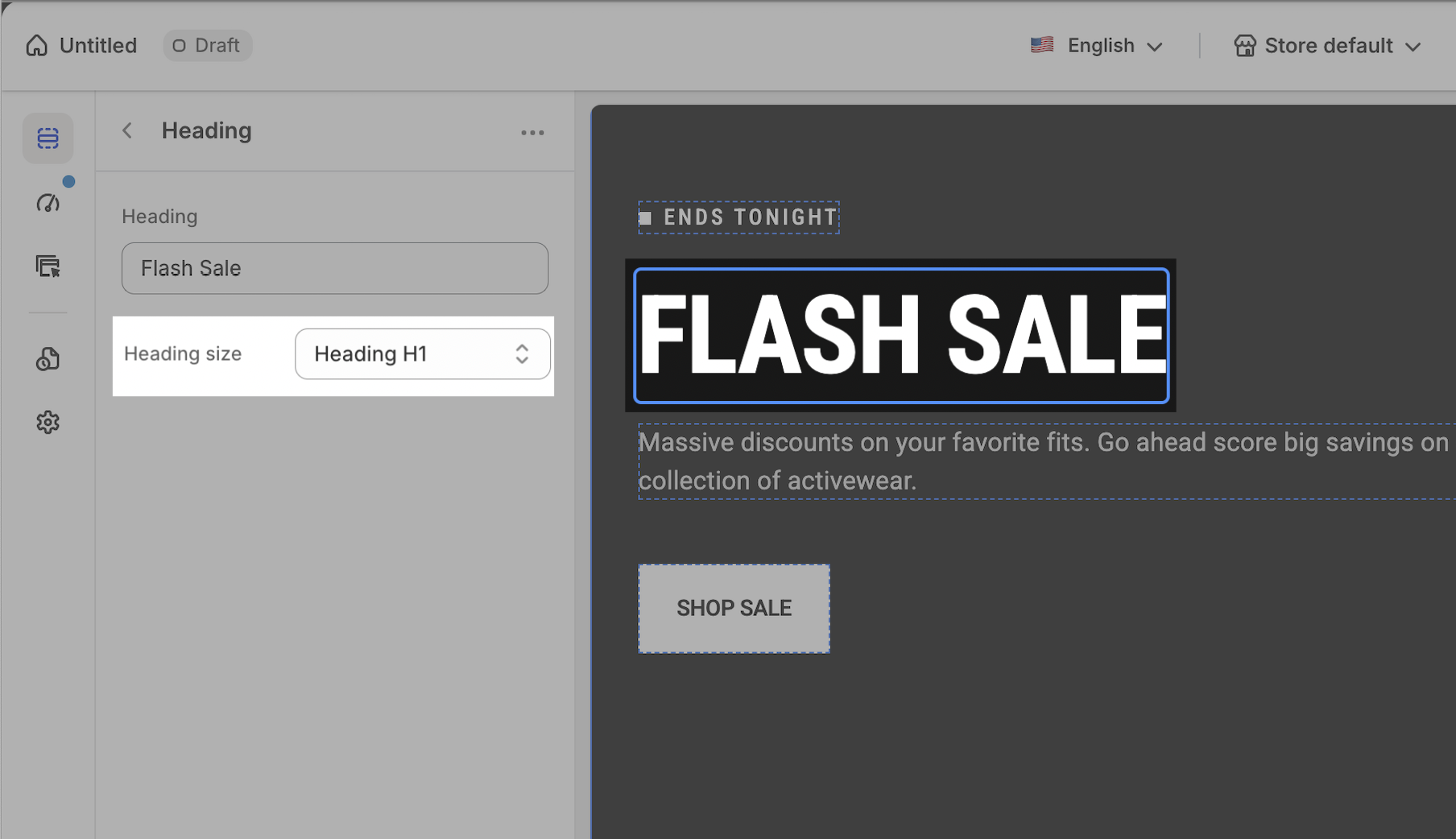
You can change typography using the text styling options provided within the text block.&#x20;

<figure><img src="/files/GI0xOd3GdjXzPdKDoYVT" alt=""><figcaption></figcaption></figure>

#### I can't find the font family I need?

Font family are provided by Google Fonts. If you want to add a custom font that is not available in Google Fonts, please contact our support team for assistance.

#### Can I set typography for different devices?

Yes, typography can **work independently on Desktop, Tablet and Mobile**.

We hope this article helps you understand how to use Typography feature in Global styles to customize typography presets and set consistent typography for your theme.

{% hint style="info" %}
Have a question?

Contact us via **in-app live chat**. We'll reply in few minutes.
{% endhint %}


---

# Agent Instructions
This documentation is published with GitBook. GitBook is the documentation platform designed so that both humans and AI agents can read, navigate, and reason over technical content effectively. Learn more at gitbook.com.

## Querying This Documentation
If you need additional information that is not directly available in this page, you can query the documentation dynamically by asking a question.

Perform an HTTP GET request on the current page URL with the `ask` query parameter, and the optional `goal` query parameter:

```
GET https://help.ecombe.com/pages-and-section-creations/general/global-theme-styles/how-to-use-typography-in-global-theme-style.md?ask=<question>&goal=<endgoal>
```

`ask` is the immediate question: it should be specific, self-contained, and written in natural language.
`goal` is optional and describes the broader end goal you are ultimately trying to accomplish on behalf of the user. GitBook uses it to tailor the answer towards what is most useful for that goal.

The response will contain a direct answer to the question and relevant excerpts and sources from the documentation.

Use this mechanism when the answer is not explicitly present in the current page, you need clarification or additional context, or you want to retrieve related documentation sections.