> For the complete documentation index, see [llms.txt](https://help.ecombe.com/llms.txt). Markdown versions of documentation pages are available by appending `.md` to page URLs; this page is available as [Markdown](https://help.ecombe.com/pages-and-section-creations/pages/how-to-create-homepage-with-ecombe.md).
# How to create a Home page with Ecombe
## Overview
This article will guide you through the steps to create a **Home page** using **Ecombe Page Builder**, allowing you to customize your Home page layout without any coding.
## What is a Home page?
If you are new to Shopify or eCommerce, you might not be familiar with what a **Home page** is.
The **Home page** is the **main page of your online store**. It is the first page visitors see when they access your store’s URL. The Home page introduces your brand, highlights key products or collections, and guides customers to explore other parts of your store, such as product pages or collections.
A well-designed Home page helps create a strong first impression and encourages visitors to take action, such as browsing products or making a purchase.
## Step-by-step guide
{% stepper %}
{% step %}
#### Access Ecombe Page Builder
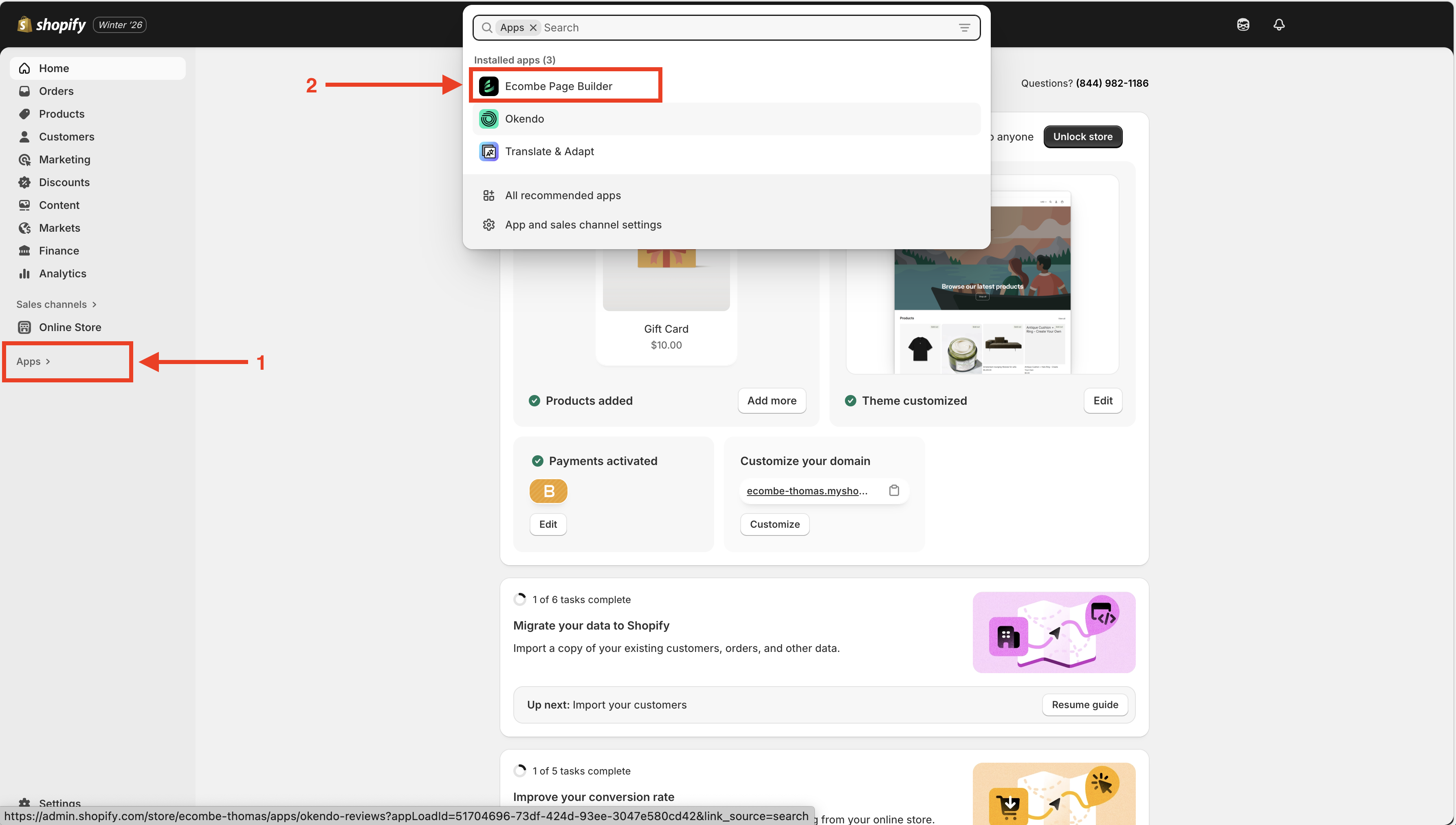
Go to **Shopify Admin** → **Apps** → **Ecombe Page Builder**
{% endstep %}
{% step %}
#### Create a new page
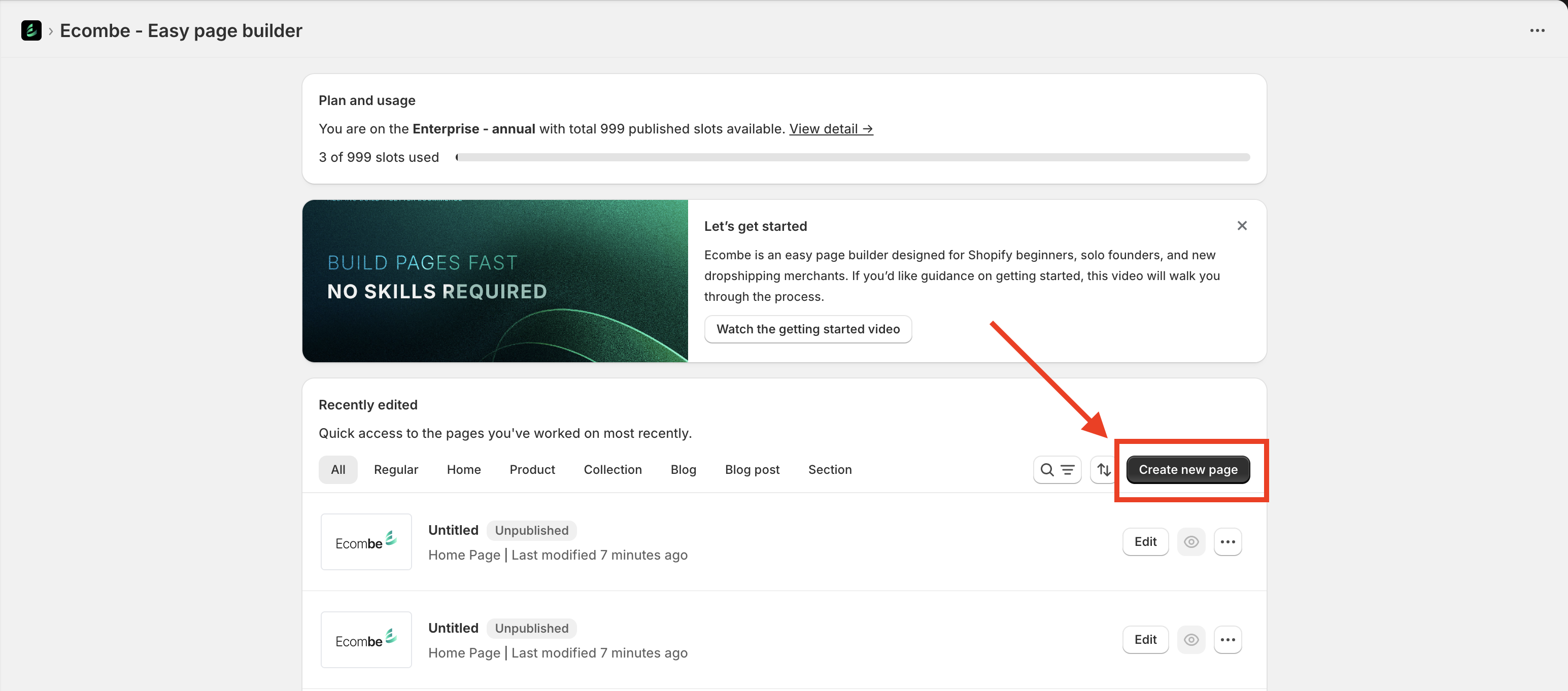
From the **Ecombe Welcome Dashboard**, click the **Create New Page** button.
{% endstep %}
{% step %}
#### Choose a Home page template
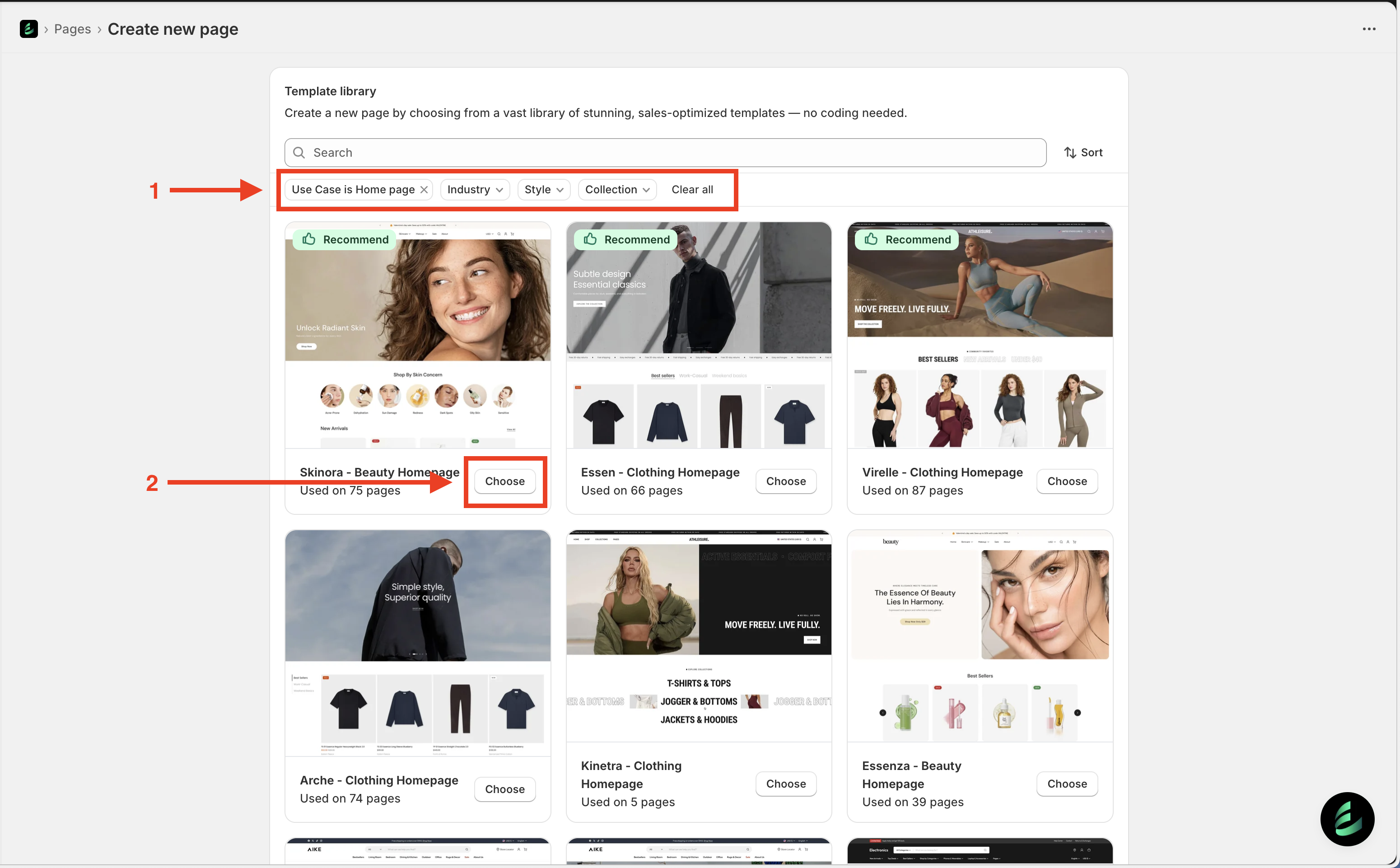
After completing Step 2, Ecombe will take you to the **Template Library**.
Here, select **Use case: Home page**. You can also filter templates by **Industry**, **Style**, or **Collection** to quickly find a suitable design.
Click the **Choose** button to select a template.
**Tip:** You can hover over a template and click to preview it before **Choose**.
{% endstep %}
{% step %}
#### Set up the Home page
In this step, you need to configure some basic settings before publishing the Home page to your storefront.
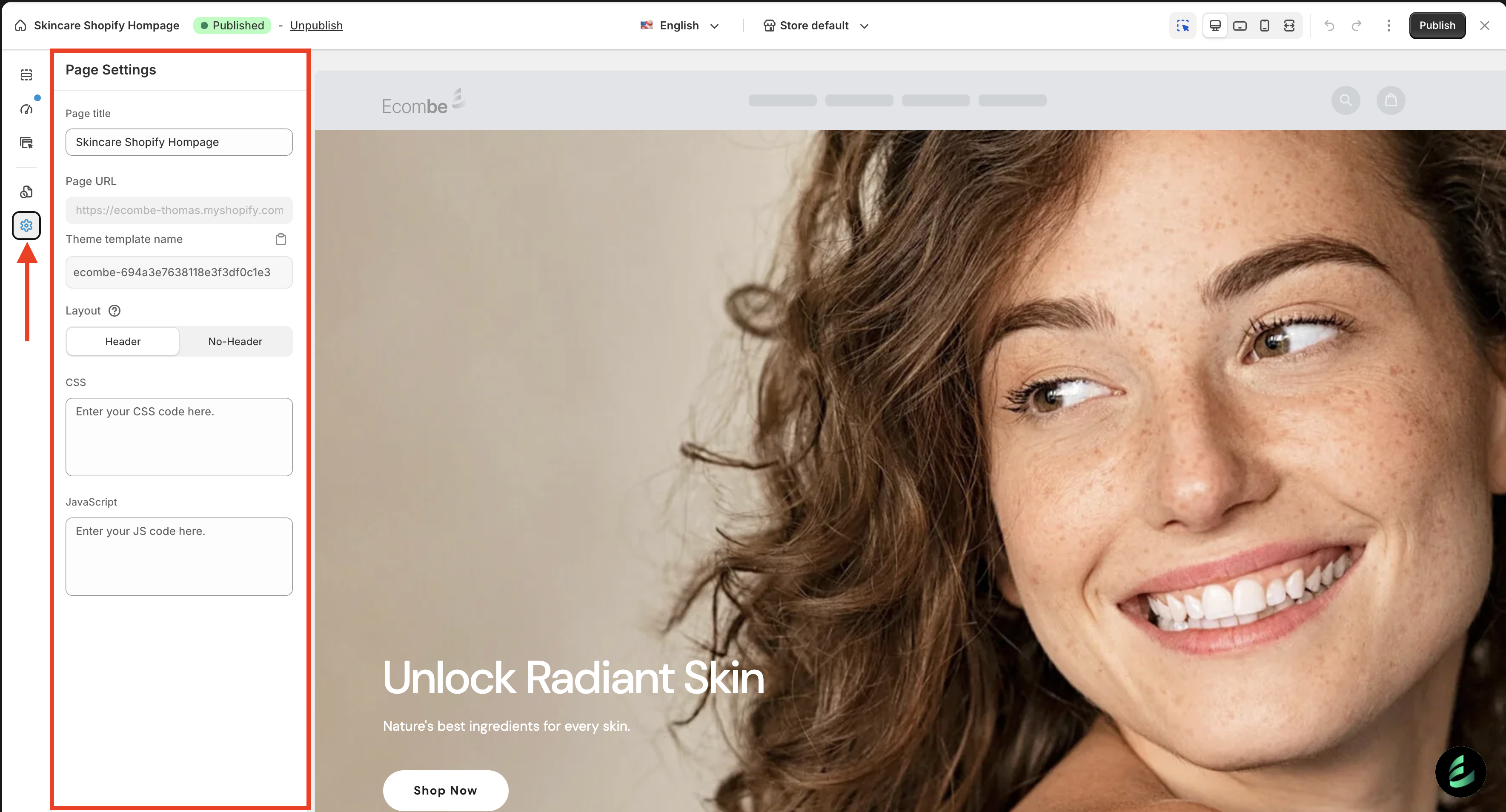
Access **Page Settings** in Ecombe left sidebar and set up these settings:
* **Page title**: Enter a name for your Home page template to easily manage it in Page Manager, especially if you have multiple Home page templates.
* **Page URL**: You do not need to fill in this field, as the Home page is the default page displayed when visitors access your store.
* **Theme template name**: This is the name of the template saved in your Shopify store. Ecombe will automatically generate the template name after the page is published.
* **CSS and JavaScript**: Add custom styles or advanced scripts for your template. If you need assistance, feel free to **contact our support team**.
{% endstep %}
{% step %}
#### Edit the Home page
In this step, you can customize the Ecombe Home page Template to match your needs.
You can click on each section to edit its content and settings. We have designed simple and intuitive options so you won’t feel overwhelmed. Everything works similarly to Shopify Theme Customization.
If you need help, you can contact our support team for immediate assistance.
{% endstep %}
{% step %}
#### Publish your Ecombe Home page
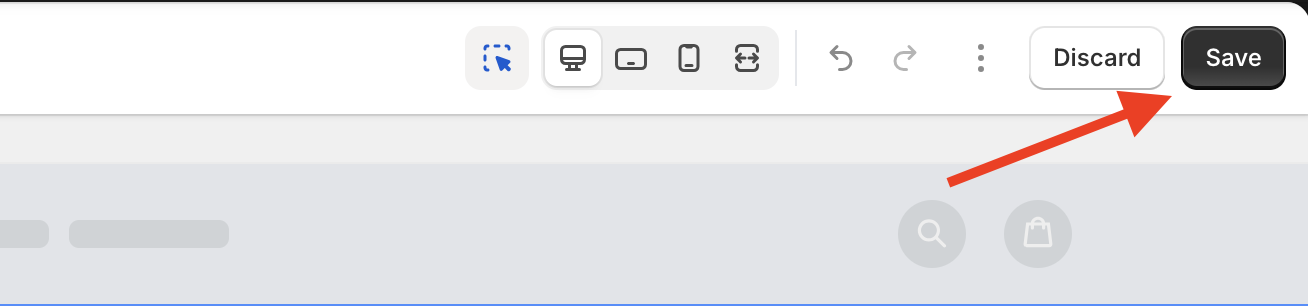
After completing the setup and customization steps, you can choose to **Save** or **Publish** the Home page to your storefront.
Click **Save** to store the template as a draft. In this case, the template will not affect your storefront.
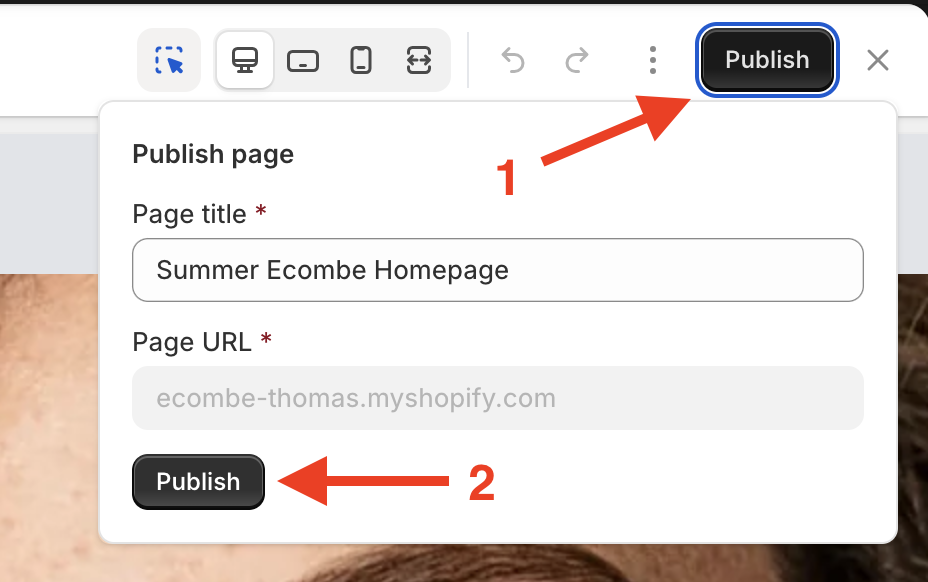
To use the Ecombe Home page instead of the Shopify theme Home page, click **Publish** → then click **Publish** again in the confirmation dialog to start the publishing process.
{% endstep %}
{% endstepper %}
## Result
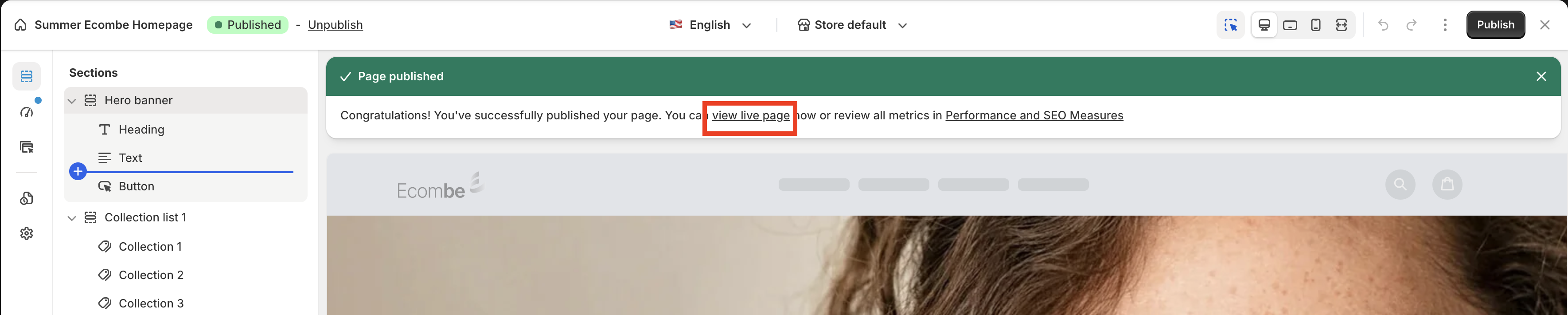
After successfully publishing the Ecombe Home page, your store’s Home page will be replaced by the Ecombe Home page.
You can click **View live page** to see the Home page directly on your storefront.
## Tips & Best practices
#### 1. Check the layout on tablet and mobile devices
Remember to check your Home page on tablet and mobile devices, as over 80% of traffic comes from mobile users.\
You can customize settings for mobile and tablet without affecting the layout on other devices.
#### 2. Preview your template before publishing
Always preview your Home page before publishing to see how it will appear on your live storefront.
## FAQ
#### 1. Can I restore the Shopify Home page after publishing the Ecombe Home page?
**Yes**. You can go to **Page Manager** to restore your Shopify Home page. For more details, please refer to [this article](/pages-and-section-creations/general/pages-and-sections-management.md#how-to-restore-default-template).
#### 2. Can I edit the Ecombe Home page after it has been published?
**Yes**. You can edit your Ecombe Home page at any time. Simply open the Home page in the Ecombe editor, make your changes, and republish to apply the updates.
#### 3. Will my Home page work on mobile and tablet devices?
**Yes**. All Ecombe Home page templates are fully responsive. You can also customize the layout separately for desktop, tablet, and mobile to ensure the best experience on all devices.