How to create and run A/B tests to optimize page

Overview

This guide introduces Ecombe A/B Testing and walks you through how to create an A/B test to determine which page version delivers better results. You’ll learn the purpose of A/B testing, how to enable it, and how to interpret test results to optimize your store’s performance effectively.

Ecombe A/B testing, what is that?

Ecombe A/B testing is a simple but powerful method for comparing two versions of a page. It helps you understand which version performs better in driving user actions such as clicks, add to cart, product views, or conversions.

In this test, traffic is split between two versions: Version A (the original) and version B (the variation). By measuring user behavior, you can make data-driven decisions to improve your store.

For example, you can test two different “Add to Cart” button colors to see which one receives more clicks. This method reduces guesswork and increases your chances of improving sales and engagement.

What can Ecombe A/B testing do?

Ecombe A/B Testing allows you to evaluate and compare different page variations to understand which version delivers the best performance. With this feature, you can:

  • Test page performance across different devices

    Run separate tests for Desktop, Tablet, and Mobile to to analyze behavior on each device.

  • Measure key performance metrics

    Track essential behavioral and conversion metrics, including Add to cart rate; Click rate; Product view rate; Conversion rate.

  • Test by visitor type

    Choose which audience segment will participate in the experiment: All visitors, New visitors, Returning visitors. This helps you testing and understanding of the behavior of specific target groups.

  • Control traffic distribution:

    Assign a specific percentage of traffic to each variant to test evenly or to prioritize certain versions.

  • Automatically apply the winning variant

    When the test concludes, the system can automatically set the best-performing version as the final page design.

Why A/B testing is important for Shopify merchants

A/B Testing is essential for Shopify merchants who want to optimize store performance without relying on assumptions. Without A/B Testing, your pages are exposed to lost sales, inconsistent user experiences, and guess-based decisions.

With A/B Testing, you gain:

  • Data-driven insights

    Make confident decisions based on real shopper behavior, not assumptions.

  • Higher conversion rates

    Identify which layout, product presentation, or call-to-action generates more engagement and sales.

  • Smarter, faster growth

    Continuously improve your store by testing ideas, discovering what works, and automatically applying winning versions.

A/B Testing empowers Shopify merchants to turn every page into a high-performing, revenue-driving asset.

Enable Ecombe A/B testing to track page conversion

Ecombe A/B testing uses data from Google Analytics (GA4) to calculate and analyze metrics. You need to enable Ecombe Analytics in order to set up and track page performance. If you have already enabled Ecombe Analytics, you can skip this step. If not, please refer to this guidearrow-up-right and continue setting up Analytics.

How to Set Up an A/B test and View Insights

In this section, you will learn how to create a complete A/B test and view its metrics.

Set Up a A/B test

To create an A/B test, your page must be published so users can access it and generate measurable data. Make sure the page is published.

1. Create a new test

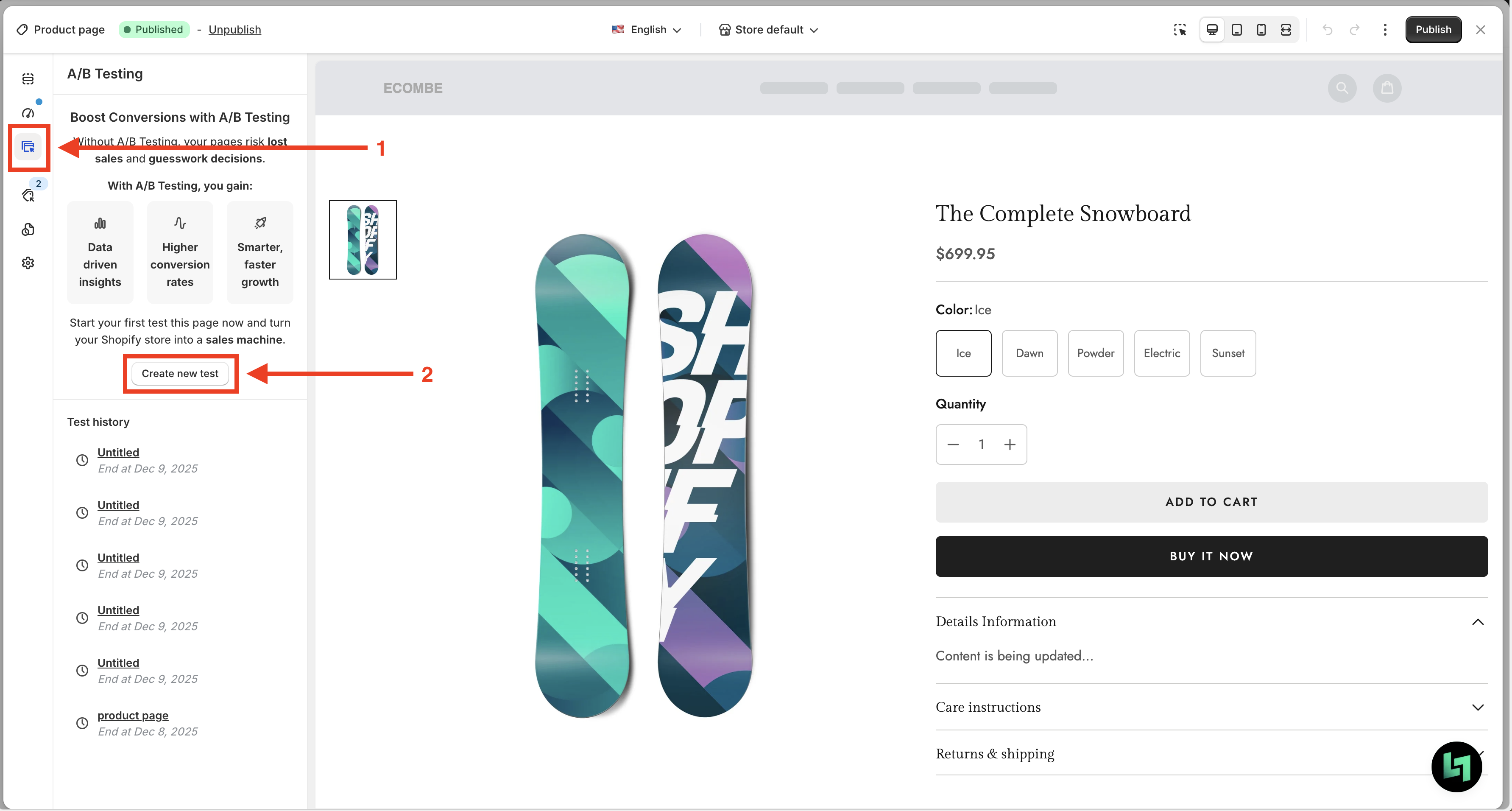
Go to the page editor where you want to create an A/B test, click the A/B test Icon in the Left Sidebar then click Create a new test.

2. Configure the test

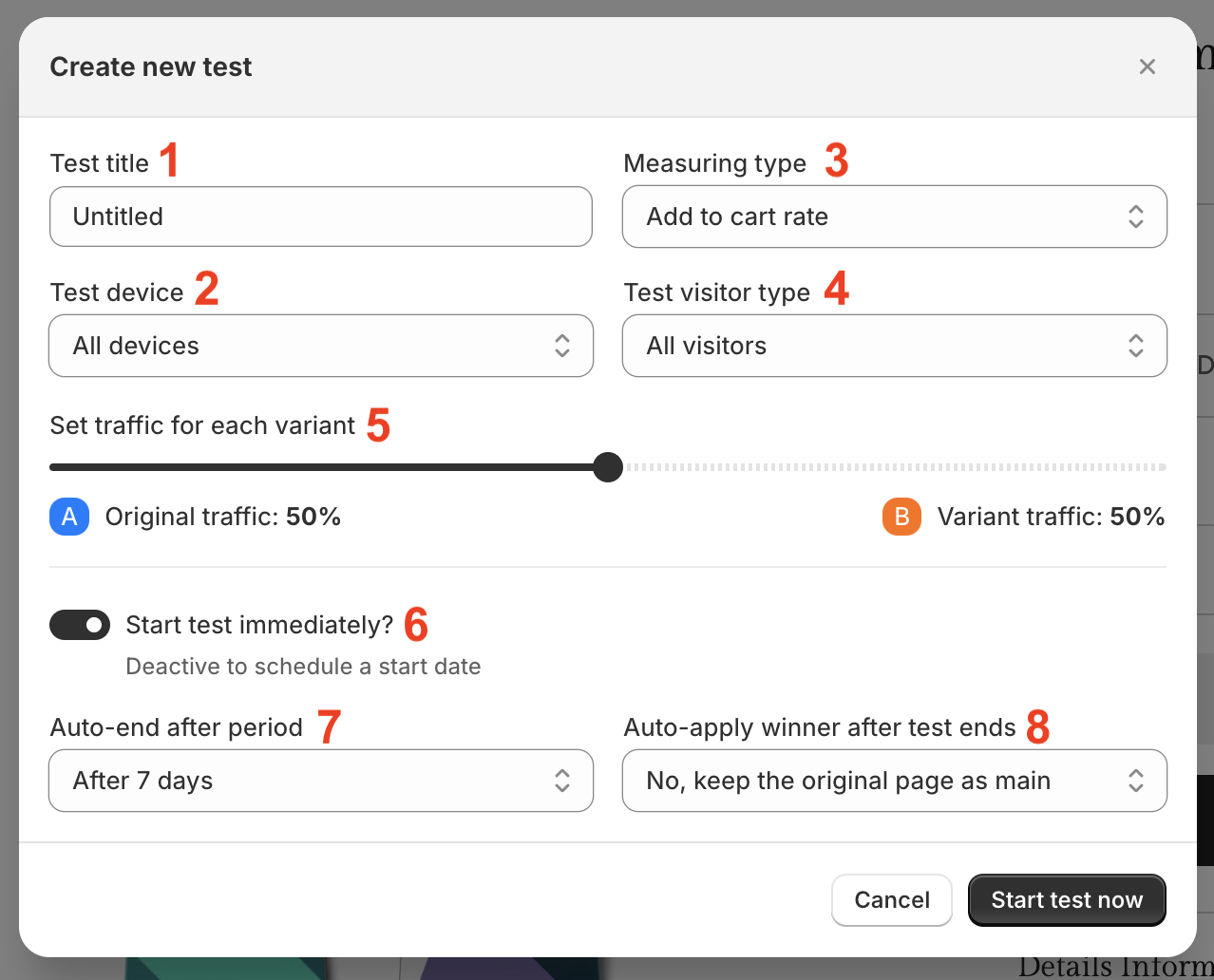
Set up the A/B test according to your measurement needs.

1

Test title

Enter a name for the test.

2

Test device

Select the device type you want to test: Desktop, Tablet, or Mobile.

3

Measuring type

Choose the action used to determine the performance of versions A and B:

  • Add to cart rate: the percentage of sessions where a product is added to cart.

  • Click rate: the percentage of sessions where visitors click any element on the page.

  • Product view rate: the number of times a specific product is viewed within a selected period.

  • Conversion rate: the percentage of sessions where visitors click a trackable element from the page.

4

Test visitor type

Select A/B test participants:

  • All visitor: all users

  • New visitor: users visiting your store for the first time

  • Returning visitor: users who have visited your page before.

5

Set traffic for each variant

Control how much visitor traffic is sent to each page version during the test.

6

Start test immediately

Start the A/B test immediately after creation, or schedule a start date.

7

Auto-end after period

End the A/B test after the selected duration.

8

Auto-apply winner after test ends

Automatically set the winning version as the main page after the test ends, based on the selected measuring type.

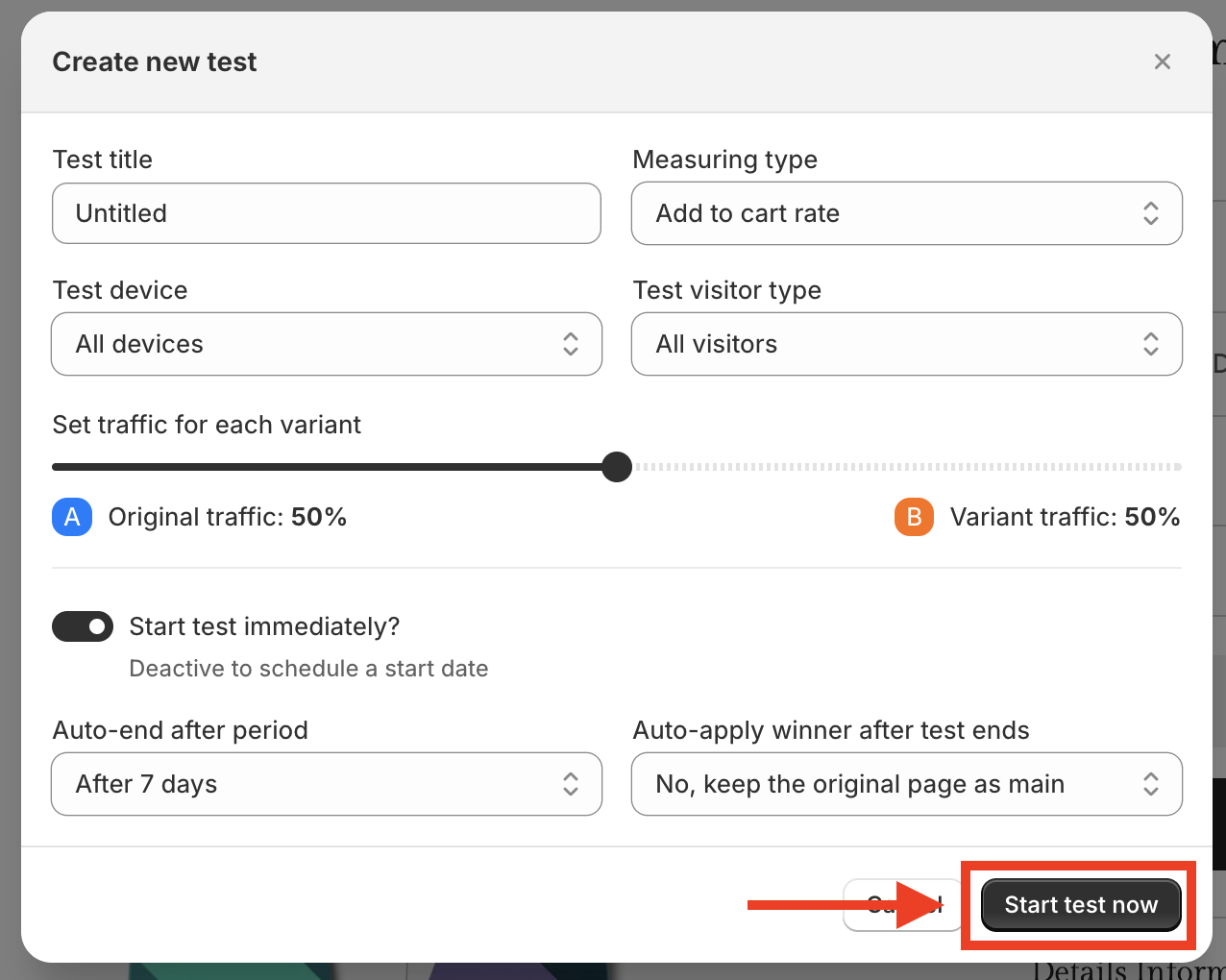
3. Start test

Click Start test now if you chose “Start test immediately,” or choose Create Schedule test if you selected a scheduled date.

4. Editing Variant version (B)

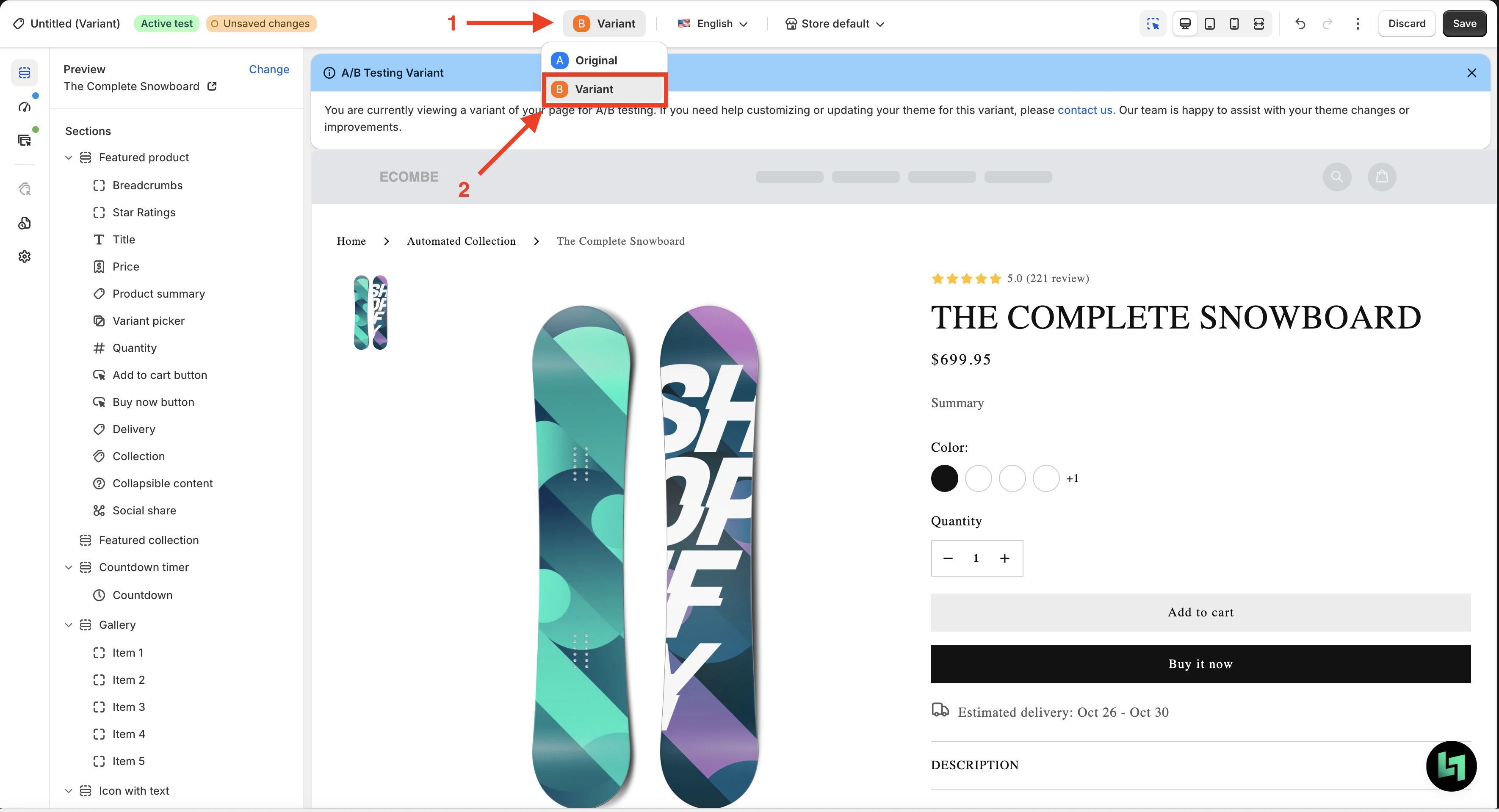
After creating and starting an A/B test, the system automatically generates two page versions: Version A (Original) and Version B (Variant). To run a meaningful experiment, you will need to edit Version B and adjust its layout or content so that it differs from Version A.

  1. In the editor, use the toggle at the top to switch between the two versions:

  • Version A – Original

  • Version B – Variant

  1. Select Version B to begin customizing the variant.

After making your changes, remember to click Save to apply them.

If you need help customizing or updating your theme for this variant, please contact us. Our team is happy to assist with your theme changes or improvements.

View Insights

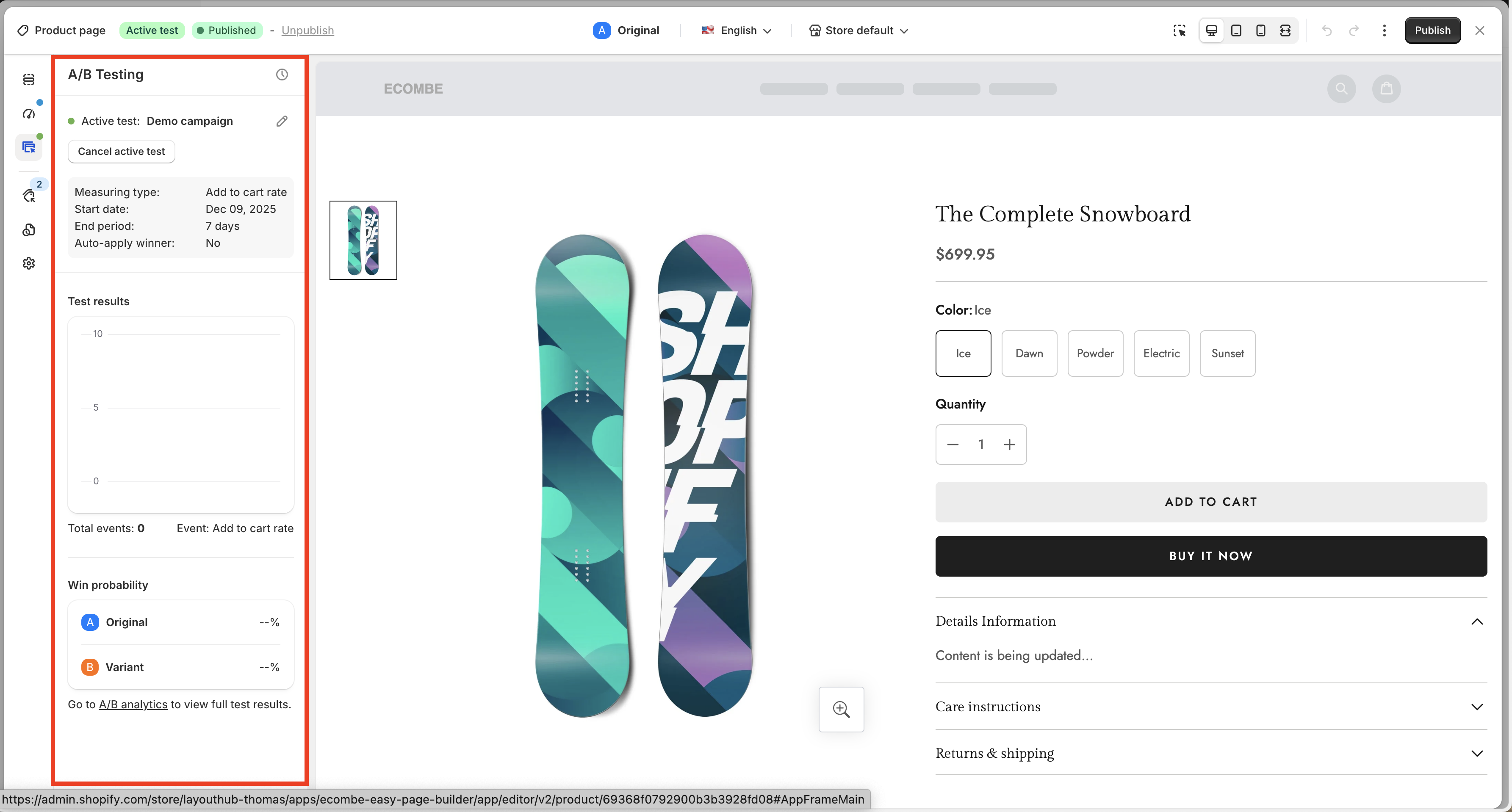
After your A/B test starts, you can quickly view A/B test information directly inside the editor.

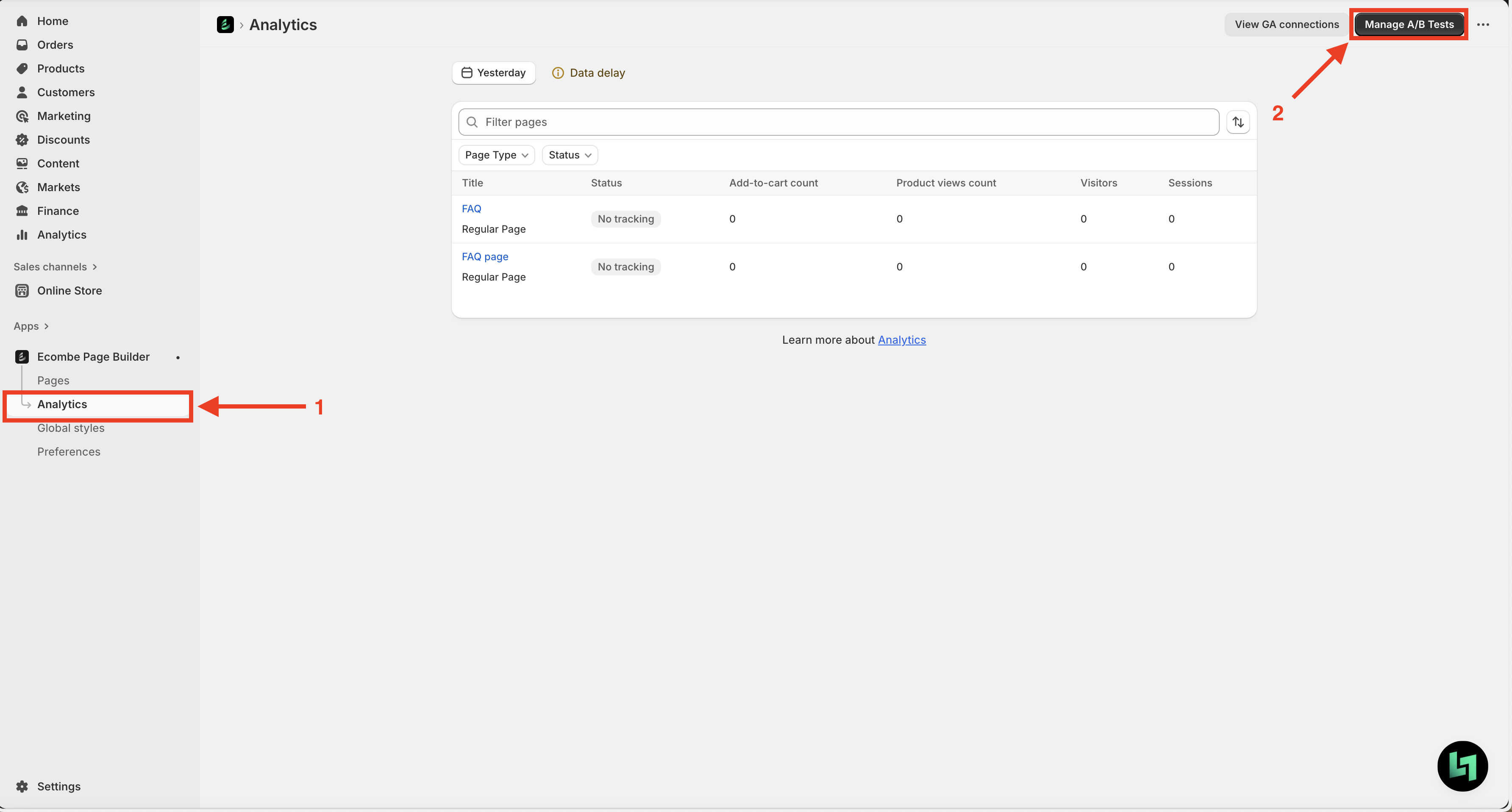
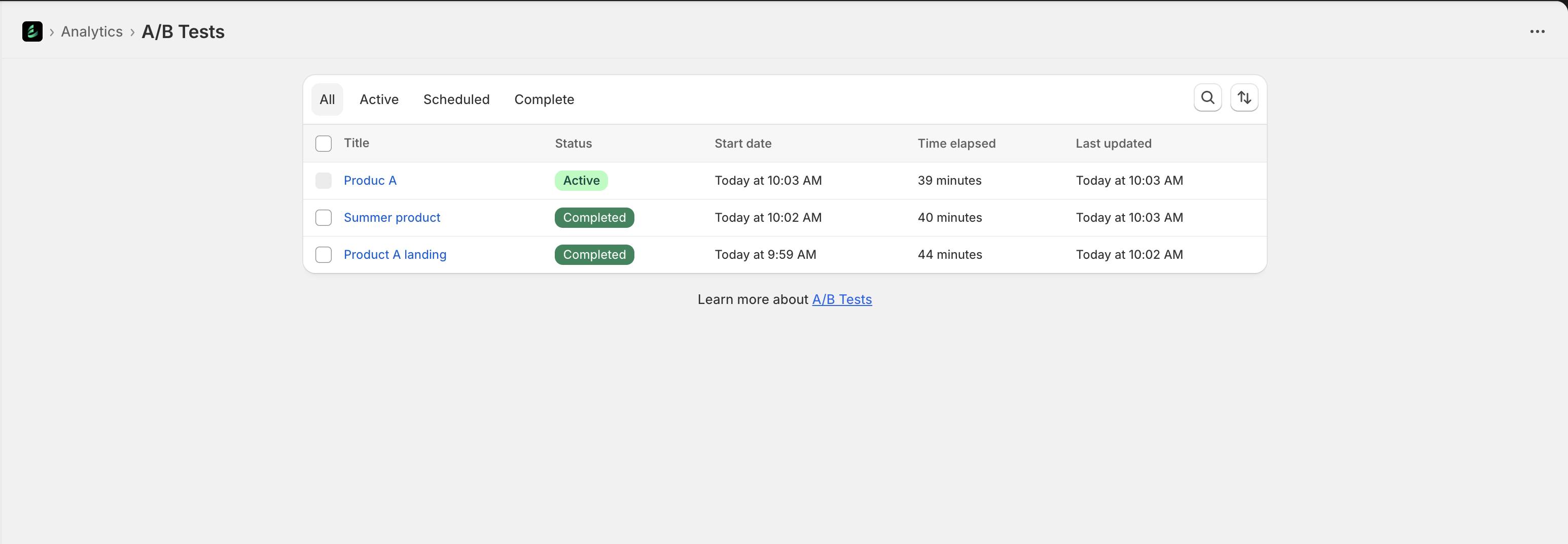
To see all detailed information about the A/B test, click “Go to A/B analytics to view full test results” in the editor or go through: Analytics > Manage A/B test > Select an A/B test to view all Insights.

1

Access Manage A/B test

Click Analytics on the Shopify sidebar > Manage A/B test.

2

Choose the A/B test to view Insights

Select the A/B test you want to view Insights.

circle-exclamation

A/B testing Insights explained

This section helps you understand the data and metrics shown in the A/B test result dashboard. It guides you on how to use the results effectively to decide which Original (A) or Variant (B) is the best.

Test Result

Test status

Displays the status and outcome of the A/B test:

  • Scheduled: The test will begin at the scheduled start time.

  • Active: The test is currently running.

  • Complete: The test has finished.

Test result

Display results during and after the A/B test.

Campaign Information

Overview

  • Goal metric: The target metric used to determine the better-performing version.

  • Device: The device type used in the test.

  • Visitor type: The visitor segment included in the test.

Runtime

  • Start time: When the test began.

  • End time: When the test ended.

  • Time elapsed: Remaining time until the campaign auto-ends.

Traffic allocation

  • Page Traffic Tested: Total traffic included in the campaign.

  • Traffic tested split: The percentage of traffic allocated to versions A and B.

Test overview

Provides an overview of the results for both Original version (A) and Variant version (B).

Win probability

Win rate of the version

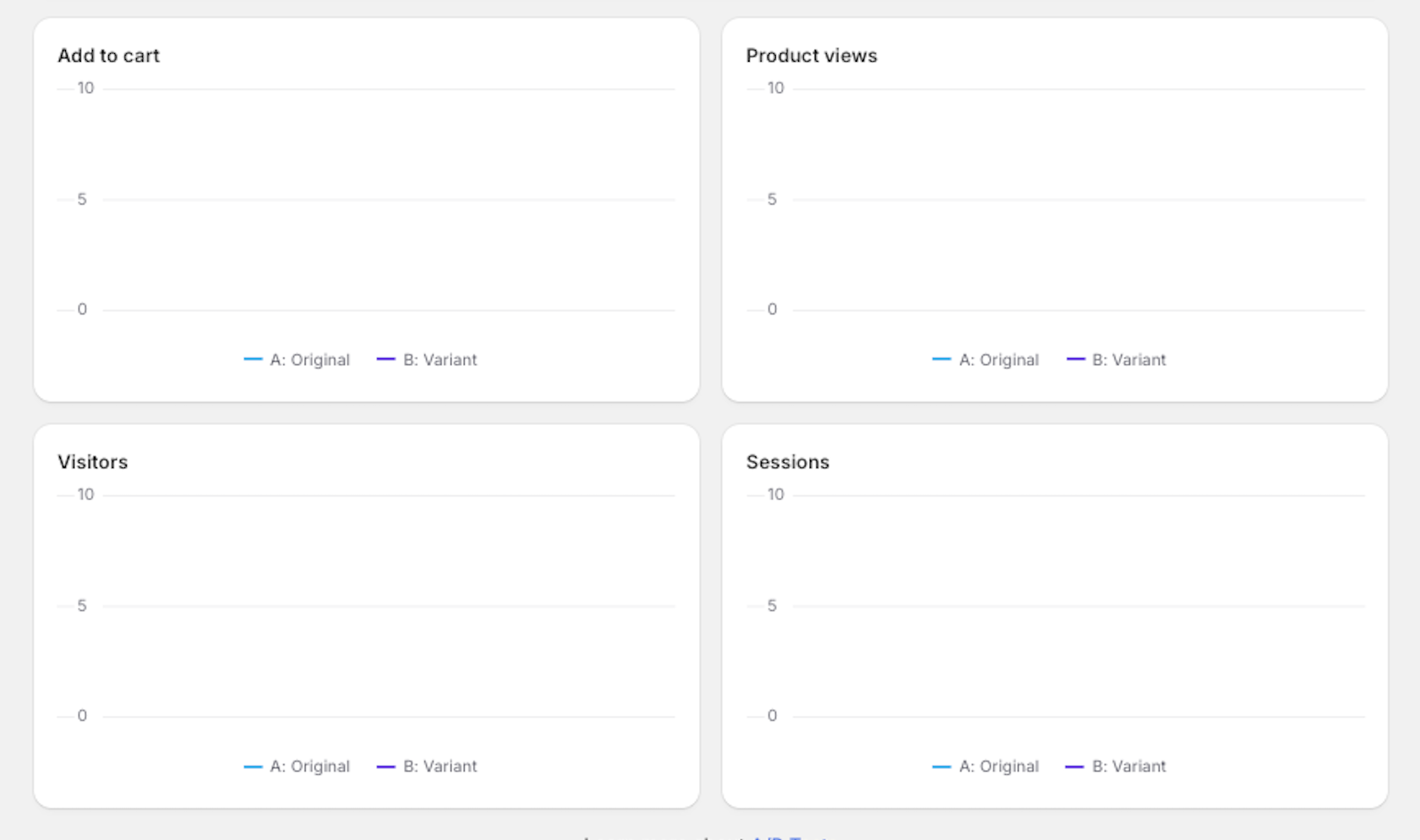
Add to cart

Number of add-to-cart actions

Product views

Number of product views

Visitors

Number of unique visitors

Sessions

Number of sessions

In addition to the metrics, Ecombe A/B Test provides charts to help you easily visualize differences between versions A and B.

Best Practices for A/B testing

Step 1: Collect (and analyze) data

The goal of this step is to identify pages with issues such as high bounce rate, drop-off rate, low add to cart, or low conversions. You can use Ecombe Analytics to collect data and identify issue.

Step 2: Define the direction and goals of the test

For example, increasing website traffic, raising conversion rate, lowering bounce rate, or reducing cart abandonment.

Step 3: Form a hypothesis

List ideas and hypotheses for A/B testing. For example: moving a signup box to the top left may increase registrations, changing the button color may increase clicks, etc.

Step 4: Determine sample size and test duration

Typically, you can test with at least 500 sessions and 10 target events to make a prediction.

Step 5: Create the new version for A/B testing

The new version should change only one variable to ensure clear comparison and conclusions about its impact on the goal defined in Step 2.

Step 6: Analyze results and conclude

If the new version performs better, apply the change. If not, continue testing further to find the winning version.

FAQ

1. What happens when an A/B test ends?

When you create an A/B testing campaign, the system asks whether you want to “Auto-apply winner after test ends.”

  • If you choose “Yes, set the winner as main page,” the system automatically applies the winning version as the main page.

  • If you choose “No, keep the original page as main,” the system allows you to decide manually.

2. What is the difference between Visitors and Sessions?

Although both measure traffic, Sessions and Visitors track completely different things.

  • Visitors: the number of unique people who visit your page. One person counts as 1 visitor, even if they visit multiple times.

    Example: 1 person visits 3 times → still 1 visitor.

  • Sessions: One visit/session to your page, starting when the user opens the page and ending when they leave. One visitor can create multiple sessions.

    Example: 1 person visits in the morning and again in the afternoon → 2 sessions

circle-info

Have a question? Contact us via in-app live chat, we'll reply in few minutes.

Last updated